
Introduction
What is OpenRules®
OpenRules® helps enterprises develop operational decision services for their decision-making business applications. OpenRules provides a set of decision intelligence software tools. It allows business analysts to develop, test, deploy, and continue to maintain operational business decision models.
OpenRules is oriented toward business analysts (subject matter experts) allowing them to:
-
Create business decision models in Excel files using decision tables and other standard decisioning constructs to represent sophisticated business decision logic.
-
Test/Debug/Execute Decision Models and Analyze the produced decisions.
-
Deploy decision models as ready-to-be-executed decision microservices on-cloud or on-premises.
-
Connect Decision Service to a relational database.
-
Learn Business Rules from your historical data.
-
Find Optimal Decisions.
OpenRules includes the following tools:
-
Rule Learner for rules discovery
-
Rule Solver for decision optimization
-
Rule DB for integration with databases
-
AI Agents: deploying OpenRules-based services as AI Agents
This guide explains how you, as a business analyst, can create, test, and maintain decision models and then work with software developers to convert your models to decision services and integrate them with existing IT systems.
What is Decision Model
Decision models represent business logic that can be used to make decisions. A decision model consists of:
-
Decision variables that can take specific values from domains of values.
-
Decision rules (frequently expressed as decision tables) that specify relationships between decision variables.
All decision variables are usually described in the special table “Glossary”. Some of these decision variables are known (decision input) and some of them are unknown (decision output) that may represent the decision model’s goals. A decision model can be executed by a superfast Decision Engine that finds a decision by assigning the proper values to unknown decision variables following the business logic specified by decision rules.
Business decision models are usually created, tested, and maintained by business analysts in the Rules Repository using only familiar tools such as Excel (or Google Sheets) and OpenRules Decision Modeling IDE:
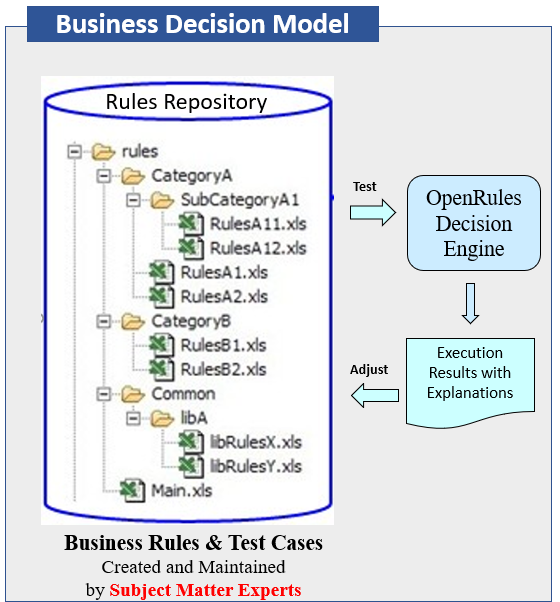
You may create test cases for your decision models in Excel following OpenRules templates.
What is Decision Service
Tested decision models can be passed to technical people to be deployed as decision services on-premises or on any cloud. The most popular deployment choice is REST decision microservices ready to be executed from external decision-making applications.
Architecture
Top-level architecture is shown in the following picture where a stateful decision-making application invokes stateless operational decision services.
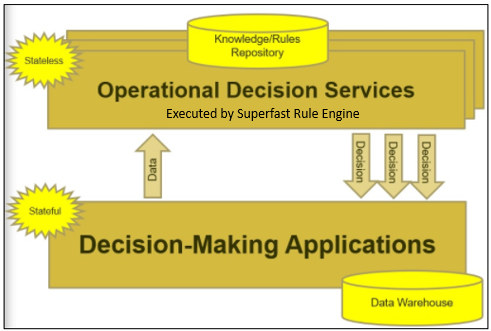
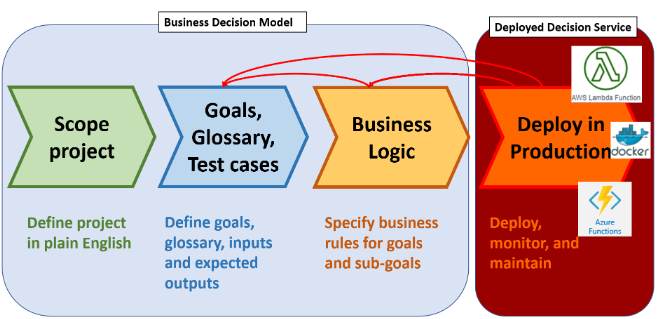
The lifecycle of OpenRules-based decision services are shown below:
Installing OpenRules Software
Pre-Requisites
Before installing OpenRules, you need to install a commonly used free Java Development Kit JDK 17 or higher and Apache Maven. See the latest installation instructions. You will also need MS Excel or Google Sheets for rules editing only (you don’t need them in run-time). Recommend hardware configuration: RAM 8Gb or more and CPU 2.2 GHz or more. Read more.
Download and Install
You may download a free evaluation version or purchase an OpenRules subscription. In both cases, you will receive a fully functional OpenRules Platform in one of these files:
-
“OpenRulesDecisionManager_x.y.z.zip” for Windows or
-
“OpenRulesDecisionManager_x.y.z.tar.gz” for Mac or Linux.
Unzip this file to your hard drive, and you will see the folder “OpenRulesDecisionManager_x.y.z” that contains all OpenRules Decision Manager with examples and documentation:
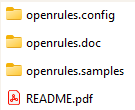
To install OpenRules Platform, you need to open the folder “openrules.config” and double-click on “install.bat” (or run “install” if you use Unix or Mac). The installation may take up to 1-2 minutes based on your internet connection speed, displaying all downloadable files on the “black” screen. Internally, OpenRules uses Maven plugins, but you don’t have to know anything about Maven or even Java (just have them pre-installed).
Make sure that during the installation, you don’t receive any red messages and at the end, you will see the message:
“OpenRulesDecisionManager x.y.z: INSTALLATION COMPLETED”
The folder “openrules.doc” contains user manual and the licenses agreement.
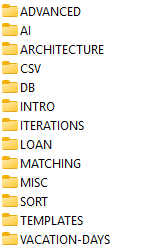
The folder “openrules.samples” provide examples in the following sub-folders:
-
The sub-folder “INTRO” includes simple decision models for first-time users
-
The sub-folder “VACATION-DAYS” demonstrates how to use different deployment options
-
The sub-folder “AI” includes AI Agents described here
-
The sub-folder “DB” includes samples of the OpenRules integration with relational databases – see Rule DB
You will be able to execute the standard decision projects, create your own decision models, deploy them on cloud or on-premises, and execute them using your preferred communication interface such as JSON, XML, or Java.
For instance, go to the folder “VACATION-DAYS/VacationDays/” and click on “test.bat”. It will build and execute the proper decision model. If you click on “expore.bat”, it will start OpenRules Graphical Interface and you will be able to analyze and debug this decision model. Similarly, you may run any other examples or create your own decision models.
Additionally, you may install OpenRules Learner and OpenRules Solver.
Any issues? Contact support@openrules.com.
Introductory Decision Service
The downloaded folder “OpenRules” includes several sample decision models ready to be built, tested, and deployed as decision services on different cloud platforms. In this section, we will demonstrate all these features using a simple decision service that calculates an employee’s vacation days.
Decision Model ”Vacation Days”
This decision model specifies decision logic for assigning vacation days to an employee based on his/her age and years of service. Here are the business rules:
-
Every employee receives at least 22 vacation days. Additional days are provided depending on age and years of service:
-
Only employees younger than 18 or at least 60 years, or employees with at least 30 years of service will receive an extra 5 days;
-
Employees with at least 30 years of service and of age 60 or more receive an extra 3 days, on top of possible additional days already given;
-
If an employee has at least 15 but less than 30 years of service, an extra 2 days are given. These 2 days are also provided for employees of age 45 or more. These extra 2 days cannot be combined with an extra 5 days.
Representing Business Logic
Any decision model can be seen as a set of decision variables (known and unknown) and a set of business rules that describe the relationships between them. A decision model specifies how to determine unknown variables called “goals” or “sub-goals” using the known ones. For this decision model, the goal is to determine the value of the decision variable “Vacation Days” which we will refer to as our main goal. We will use Excel tables in the OpenRules format to represent decision variables and business rules.
The following table provides the first example of a so-called decision table that specifies the business logic for our main goal:
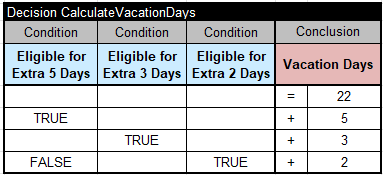
The first row (with a black background and white foreground) is called a signature row. Every OpenRules decision table in the left top corner contains a keyword such as Decision, DecisionTable, Glossary, DecisionTest, DecisionData, etc. This table starts with the keyword “Decision”. It tells us that this is a so-called “multi-hit” table that executes all (!) satisfied rules in the top-down order.
The second word in the signature row “CalculateVacationDays” specifies the name of the decision table that should be unique, start with a letter, and not include whitespaces.
The second row specifies different conditions and actions (conclusions). This table contains 3 conditions (specified by the keyword “Condition”) and one conclusion (the keyword “Conclusion”).
The third row contains the names of decision variables used by conditions and conclusions. The variable name can use spaces and should clearly explain the business meaning of these variables.
The very first rule in the 4th row assigns 22 days to the variable “Vacation Days” (unconditionally). Empty cells indicate that the proper condition is not applicable (instead of leaving the cells empty you may use the hyphen “-“).
The rules in rows 5, 6, and 7 may add (or not) an extra 5, 3, or 2 vacation days when an employee is eligible for them. Looking at the last rule, you will see how this decision table takes care of the rule “An extra 2 days cannot be combined with an extra 5 days.” Hopefully, this decision table is intuitive enough to represent our top-level decision logic.
Note that all columns in the first (signature) row are merged to indicate the end of the table. Usually, all decision tables should be surrounded by empty cells, especially pay attention to have an empty row at the end of any decision table.
Now let’s define the eligibility logic for extra 5, 3, and 2 vacation day. First, we create another decision table that specifies how the decision variable (sub-goal) “Eligible for Extra 5 Days” can be defined:
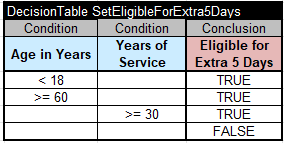
This table starts with the keyword “DecisionTable” that specifies a single-hit decision table. Such a table executes rules in the top-down order and stops when one rule is satisfied (hit). The first rule sets “Eligible for Extra 5 Days” to TRUE when Employee’s “Age in Years” (an input decision variable) is strictly less than 18. If not, the second rule will do the same for employees of the age 60 or older. The third rule sets “Eligible for Extra 5 Days” to TRUE when Employee’s “Years of Service” (another input decision variable) is more or equal to 30. If all first 3 rules fail, then the last rule (so-called “default” rule) will set “Eligible for Extra 5 Days” to FALSE.
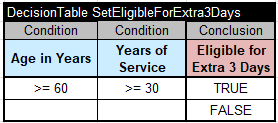
Similarly, the following decision table specifies decision logic for the sub-goal “Eligible for Extra 3 Days”:
And finally, the following decision table specifies decision logic for the sub-goal “Eligible for Extra 2 Days”:
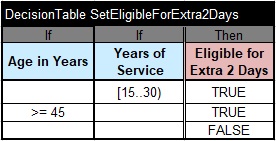
This completes the representation of the business logic for our decision model. In the project “VacationDays” all these tables have been created in the Excel file “Rules.xlsx” placed in the folder “VacationDays/rules”.
Glossary
Any decision model requires that all used decision variables (goals, sub-goals, and input variables) used in the decision tables should be described in the special table called “Glossary”. Here is an example of a glossary described in the file “Glossary.xlsx” in the folder “VacationDays/rules”:
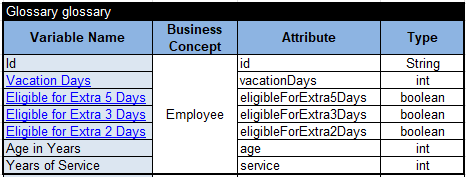
This table has the keyword “Glossary” in the top-left corner. The first column “Variable Name” contains the names of decision variables exactly how they were used inside the decision tables.
The second column “Business Concept” contains the name of a business concept to which these variables belong. There could be several business concepts, but this model contains only one concept “Employee”. The name of the business concept should be unique, start with a letter, and do not include whitespaces. Note that merging cells inside the second column “Employee” indicates that all variables on the left belong to this concept.
The third column “Attribute” provides technical names for all decision variables – they will be used for the IT integration. These names should start with a small letter and not include whitespaces.
The fourth column “Type” describes the expected type of each decision variable such as “String” for text variables, “int” or “Integer” for integer variables, “double” or “Double” for real variables, “boolean” or “Boolean” for logical variables, Date for dates, “String[]” for an array of text variables, etc. Actually, the types are the valid Java types but as a business analyst, you don’t have to even know this fact and just memorize the most frequently used keywords such as String, int or Integer, double or Double, Boolean, Date.
A glossary may contain optional columns such as:
-
“Description” with a plain English explanation of the decision variable meaning.
-
“UsedAs” that can be defined as in, out, required, or const.
-
“Domain” that may describe possible values of the variable, e.g. “1-120” for the variable Age and “Single, Married” for the variable Gender.
-
“Default Value” that will be used when a variable is not defined.
-
“JSON Name” that contains custom names of JSON attributes that can includes spaces and any national language characters.
These columns could be very helpful to understand the decision model.
You may notice that some decision variables (goals and sub-goals) are hyperlinked to point to the decision tables (worksheets) that specify these goals. A click on the variable inside the glossary will immediately open the xls-file and the table that specifies this variable. It’s easy to do using Excel Hyperlinks and is very convenient for the future maintenance of your decision models when you want to find out “what is defined where”.
File Structure
Let’s look at how this decision model is organized. The sub-folder “rules” represents a so-called “Rules Repository” and contains the following Excel files:
-
DecisionModel.xlsx: includes the Environment table that refers to all Excel files that compose this decision model.
-
Glossary.xlsx with the table Glossary that describes all decision variables used by this decision model.
-
Rules.xlsx with decision tables that implement business logic.
-
Test.xlsx with tables that describe test cases.
The file “VacationDays/rules/DecisionModel.xlsx” describes the structure of the decision model in the table “Environment”:

This table states that our decision model includes files “Glossary.xlsx” and “Rules.xlsx”. Your model can use multiple xls- and xlsx-files located in different folders, and you can define them all in the Environment table relative to the file “DecisionModel.xlsx”. If your entire decision model is described in one Excel file, you don’t need to define the Environment table at all.
The Environment table usually also specifies various properties used to build, test, and deploy this decision model:
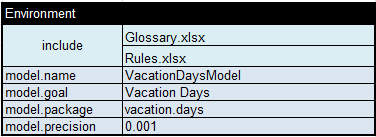
The property “model.name” specifies the name of the decision model as it will be known to the external world. This name should start with a letter and not contain whitespaces.
The property “model.goal” specifies the name of the main goal from the glossary that your decision model should determine.
The property “model.package” specifies the name of the internal Java package in which OpenRules will put generated Java files. It could be any name similar to “com.company.problem” but it should start with a letter and not to contain whitespaces.
The property “model.precision” specifies the precision of real numbers used to compare the expected and actualy produced results.
Note. These and other project properties could be overwritten in the file “VacationDays/ project.properties”.
Test Cases
The file “VacationDays/rules/Test.xlsx” describes test cases for this decision model in the following table that starts with the keyword “DecisionTest”:
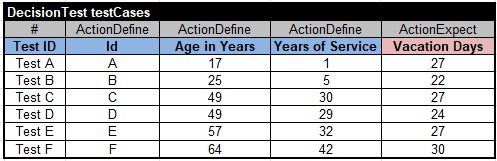
This table describes 6 test cases with columns “ActionDefine” specify input decision variable and the columns “ActionExpect” specify the expected values. The first column “#” defines the name or an order number of the test.
When a decision model contains many decision variables, it can be more convenient to use an alternative way to specify test-cases using Data tables. For example, the table
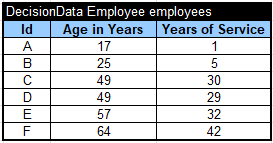
describes an array of 6 test-employees. The first row specifies the table type using the keyword “DecisionData”. Then after space, it contains the word “Employee” that is the same name we used as a business concept in the above Glossary. And then after space, it contains the word “employees” that is the name of this array of employees.
The second row contains the names of Variable “Id”, “Age in Years”, and “Years of Service” used as input for our decision model that should be the same as in the first column of the glossary.
The next 6 rows describe employees with specific values of these attributes.
Test cases with expected results defined in this table of the type “DecisionTest”:
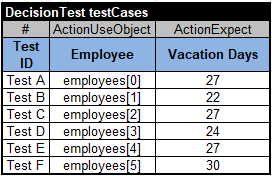
Here the second column “ActionUseObject” defines the business objects associated with the business concepts defined in the glossary, in this case, “Employee”. And the third column “ActionExpect” specifies the expected values of the decision variable “Vacation Days”.
Building and Testing Decision Model
OpenRules provides a decision engine capable of building, testing, and deploying business decision models on-premise or on-cloud. There are several bat-files in every project folder such as “VacationDays” which can be used by a user to execute OpenRules decision engine to build/test/deploy decision models.
File “project.properties”
The file “VacationDays/project.properties” specifies various properties of our project used to build, test, and deploy this decision model. Here are the required properties:

The property “model.file” specifies the name of the main file that defines the structure of the decision model.
The property “test.file” specifies the name of the xls-file that defines test cases.
This file may also contain properties described above in the Environment table, and if they are defined here they will have a preference.
File “test.bat”
The file “VacationDays/test.bat” is used to build and test your decision model. This file is the same for all standard decision models and you don’t even have to look inside this file. When you double-click on this file, it will do the following:
- If the model hasn’t been built yet or some files have been changed, it will execute these steps:
-
Validates all files included in your decision model for possible errors;
-
If there are errors, it will show the errors pointing to the reasons and the proper place in Excel files;
-
If there are no errors, it will generate Java classes (in the folder “target”) needed internally to execute this decision model. The generated Java classes will be compiled preparing the decision model for execution.
- After a successful build, the decision model will be executed against test cases described in the property “test.file”.
Another bat-file “VacationDays/build.bat” can be used to build the decision model as well, but it will execute the model only after rebuild.
Note. If you use Mac or Linux, instead of “test.bat” you can use the provided shell-files “test” or “build”.
File “pom.xml”
Each OpenRules project contains the configuration file “pom.xml”. Usually, a business person doesn’t have to look inside this file. However, if you open “VacationDays/pom.xml” with any text editor such as Notepad, you will see that in the line 7 it contains the name of your project written as follows:
<artifactId>Hello</artifactId>
It is also can be helpful to note that the used release of OpenRules software is defined in the line such as <openrules.version>10.4.0</openrules.version>. All other lines may be used in the future by technical people to choose different configuration options.
Testing Results
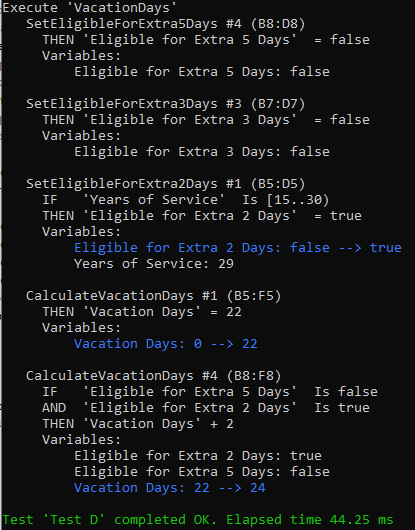
During the execution, you will see the execution protocol. For example, below you can see a snapshot of the protocol that shows business rules executed for the test case D. For each executed rule it also shows in which cells this rule is defined in Excel, e.g.
CalculateVacationDays #4 (B8:F8)
The highlighted lines show the old and new values of decision variables that were modified by the current rule. You may show/hide the execution details by defining the property “trace” as “On” or “Off” in the file “project.properties”.
Explanations
After the decision model execution, you also may look at the automatically generated HTML reports for each test case. For example, below you can see the report for Test D generated by OpenRules in the file “report/TestD.html”. It shows in a user-friendly format which rules were executed and why by providing the values of all decision variables participated in these rules in the moment they were executed.
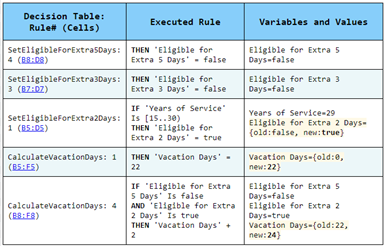
You may control the report generation by defining the property “report” as “On” or “Off” in the file “project.properties”.
Execution Path
Please note that OpenRules decision engine can automatically figure out the order in which the decision tables should be executed. We call it “execution path”. For this decision model, the execution path is defined as:
-
SetEligibleForExtra5Days
-
SetEligibleForExtra3Days
-
SetEligibleForExtra2Days
-
CalculateVacationDays
It followed the intrinsic dependencies between the corresponding goals and sub-goals. Looking at the above decision tables we can conclude (like the decision engine did) that the goal “VacationDays” depends on the sub-goals “Eligible for Extra 5 Days”, “Eligible for Extra 3 Days”, and “Eligible for Extra 2 Days”. We did not specify this order in any diagram (like DMN DRD [1]). Contrary, OpenRules can generate such dependency diagrams automatically – see below.
In the real-world, decision models include many inter-related goals and sub-goals and such relations can be quite complex and frequently changed. So, it’s important that a decision engine that executes a decision model is capable to automatically discover the execution path. Still, if you prefer, you may define the execution path manually using the table of the type “Decision” with a special column “ActionExecute”.
OpenRules Graphical Explorer
OpenRules comes with using OpenRules Explorer, a graphical integrated development environment (IDE) for business-oriented decision modeling. From this graphical interface you can do the following:
-
Decision Model Visualization and Editing
-
Testing
-
Debugging
-
Deploying.
You can start OpenRules Explorer by a double-click on “explore.bat”.
Diagramming
OpenRules Explorer automatically generates decision diagrams like the one below:
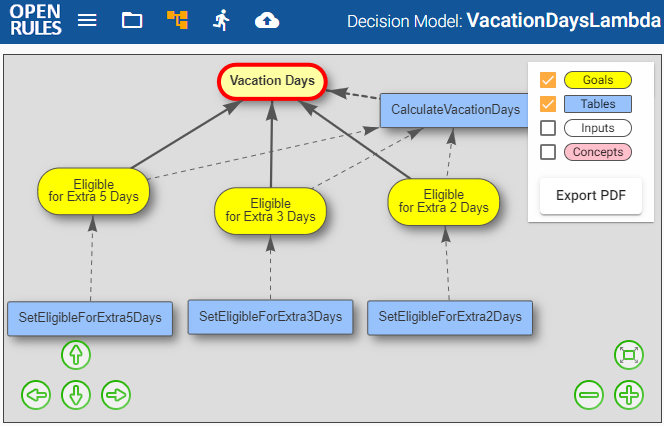
This diagram reflects the Goal-Oriented approach to Decision Modeling and follows the DMN (Decision Model and Notation) graphical convention for decision requirement diagrams. All goals are shown as yellow rounded rectangles, and the main goal has a red border. The arrows between goals show the automatically (!) discovered knowledge relationships, e.g. the main goal “Vacation Days” depends on the sub-goals for extra days.
You don’t have to draw the diagram yourself as it is automatically generated based on an already defined glossary, goal/sub-goals, and tables that specify their logic. You may freely move the diagram elements around and the Explorer will keep all relationships between them (arrows) intact. The Explorer can expand this diagram by showing all related input variables and business concepts. By a click on a node such as “CalculateVacationDays” you may open the proper decision table right inside the Explorer:
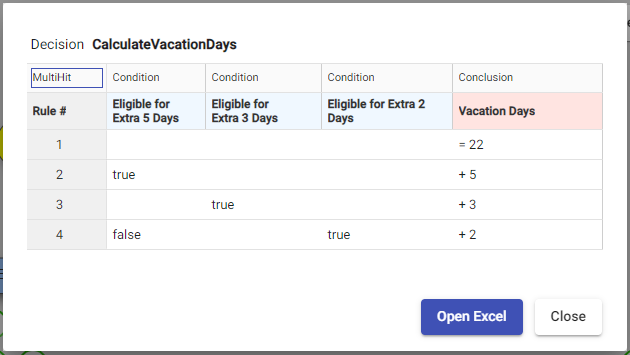
Click on “Open Excel” to see and modify this table in Excel.
Testing and Debugging
Click on the “running man” in the menu, to open the Test & Debug view.
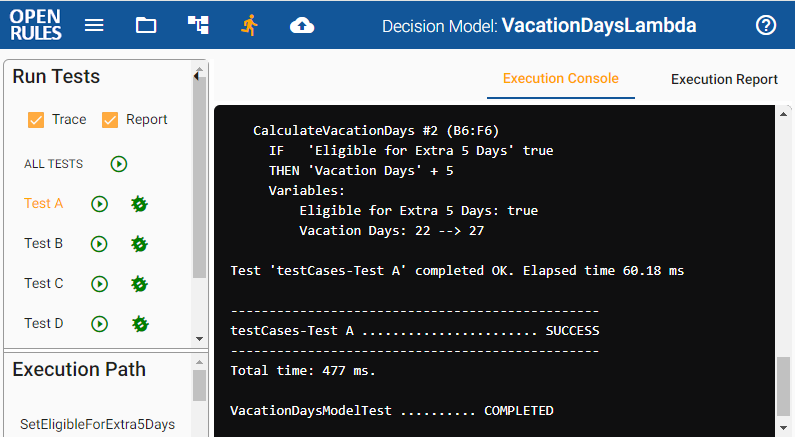
The left panel “Run Tests” shows all available test cases which you can open in Excel by clicking on the test name. The panel “Execution Path” shows all major execution steps in the automatically defined order. You can execute ALL TESTS or only selected test cases. To execute a test case you may click on the icon  and you will see the results on the Execution Console. You may click on the tab “Execution Report” to see the automatically generated reports that show only actually executed rules with pointers to the places in Excel where they are defined, brief rules formulations, and all involved decision variables with their values in the time of the rule execution.
You can debug your decision model by click on the Debug-button . You will be able to execute rules one by one, analyze all related decision variables before and after rules execution, set breakpoints, and much more. Here is a typical Debugger’s view:
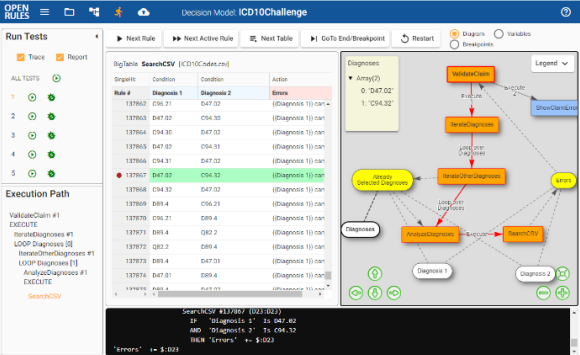
OpenRules Debugger allows business analysts with no programming experience to navigate through decision models using an intuitive graphical interface and helps them to understand the most complex situations. See its detailed description and/or watch the proper video.
Deploying Decision Model
OpenRules internally converts business decision models such as “Vacation Days” into highly efficient Java code and then automatically deploys it on-premises, on-cloud, or even on smartphone. Your decision model can be deployed as a decision microservice at your preferred deployment platform including AWS Lambda, MS Azure, Docker, Apache Spark, and more. You may deploy your model from OpenRules Explorer using a view such as this one:
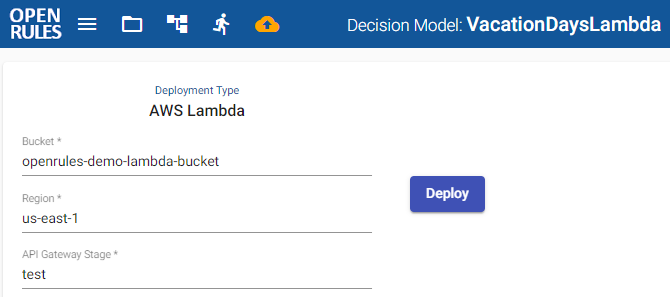
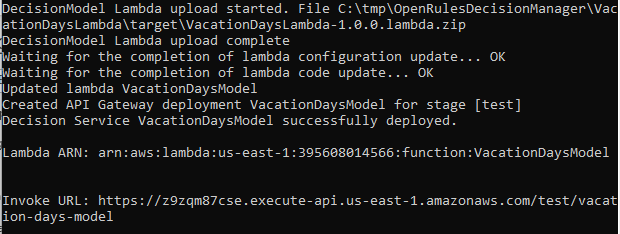
Alternatively, you can do it with a simple a double-click to a provided bat-file such as “deployLambda.bat”. The deployment parameters can be set in the files “project.properties” and “pom.xml”. This one-click deployment will create an AMS Lambda function and will produce its endpoint URL:
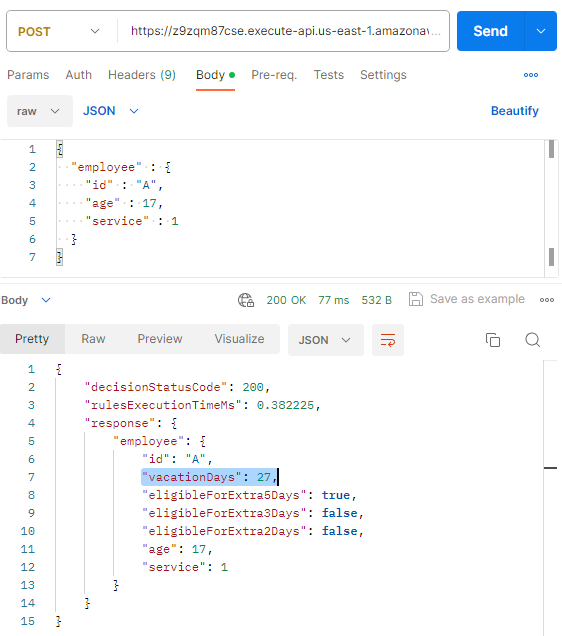
Now it can be executed as a regular RESTful web service. For instance, using POSTMAN with the generated URL and a simple JSON request produced by OpenRules in the folder “jsons”:
Similarly, you may deploy this same business decision model as RESTful web service for MS Azure and many other deployment frameworks.
Decision Services as AI Agents
OpenRules automatically turns its decision models into AI-friendly services compatible with leading LLMs like ChatGPT, Claude, and Gemini. You do not need any coding or manual configuration. Every OpenRules decision service is AI-ready out of the box. You can find the detail description and concrete example here.
More Decision Models
The downloaded folders “openrules.demo” and “openrules.samples” contain many sample decision models, such as “Hello“, “VacationDays“, “UpSellRules“, “PatientTherapy”, and others, which are ready to be built, tested, and deployed.
There are several decision models with the names starting with “VacationDays”, e.g “VacationDaysLambda”, “VacationDaysSpringBoot”, etc. They demonstrate how your technical people may use your business decision models in different deployment environments such as Amazon AWS, MS Azure, and others.
You may find many more useful business decision models by downloading “openrules.samples” from here. Some of them are described in the OpenRules Blog.
To create a new custom decision model, you may simply copy any existing sample project such as “Hello” into a new folder, say “MyProject”, and in the file “pom.xml” (see line 7) replace <artifactId>Hello</artifactId> to <artifactId>MyProject</artifactId>
Also, make sure that you are using the latest release of OpenRules (e.g. 10.4.0) by setting <openrules.version>10.4.0</openrules.version>
You may place your project anywhere on your hard drive. Then you may double-click on “test.bat” to make sure it works, and then start making changes in your Excel files and “project.properties”.
Decision Modeling Approach
OpenRules provides all the necessary tools to support the modern decision modeling methodology such as Goal-Oriented Decision Modeling. It allows business analysts to develop and maintain operational business decision models and deploy them as decision microservices. Subject matter experts without help from programmers can create decision models using only familiar MS Excel (or Google Sheets) as an editor, OpenRules Explorer as Graphical Decision Modeling IDE, and OpenRules Rule Engine as a building, deployment, and execution environment.
Decision Model
The above introductory example shows a typical decision model represented as a glossary surrounded by decision tables that specify decision logic for different goals and sub-goals as in the following picture:
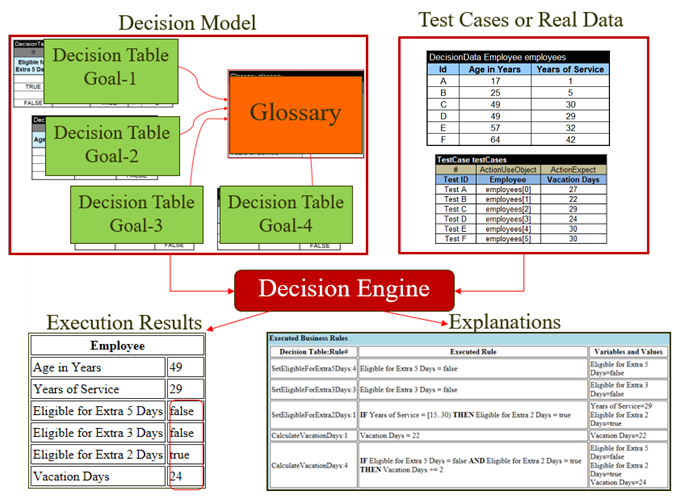
All decision variables should be described in the special table “Glossary”. Some of these decision variables are known (decision input) and some of them are unknown (decision output) that may represent goals/sub-goals. By executing a decision model OpenRules decision engine finds a decision that assigns values to unknown decision variables following the business logic specified by decision rules.
Goal-Oriented Decision Modeling
OpenRules uses a goal-oriented approach to decision modeling described in this book. It promotes a top-down approach that starts with the definition of the top-level Decision Goal (not with rules or data). You put the top-level goal into a glossary and define its business logic using a decision table that specifies its sub-goals using sub-goals and other decision variables. You continue this process for all sub-goals until the business logic for all goals and sub-goals is defined.
For example, the introductory decision model has the top-level goal called “Vacation Days” – the only decision variable added to the initial glossary. Its decision logic defines in the decision table “CalculateVacationDays” which specifies 3 sub-goals: “Eligible for Extra 5 Days”, “Eligible for Extra 3 Days”, and “Eligible for Extra 2 Days”. We added these sub-goals to the glossary and specified their decision tables. These decision tables identified two input variables “Age in Years” and “Years of Service“ (which we also added to the glossary). Then we added test cases and executed the decision model.
The real-world decision models can be much more complex, and contain more rules, but the methodological approach remains the same.
OpenRules allows a business analyst to represent and maintain decision logic directly in Excel. The following sections describe major OpenRules decisioning constructs.
The goal-oriented approach is supported by the graphical Decision Modeling IDE (integrated development environment) that allows a business analyst to analyze their decision model using automatically built decision diagrams and a powerful while user-friendly Debugger.
Graphical Decision Model Explorer
OpenRules comes with Decision Model Explorer, a Graphical Integrated Decision Modeling Environment that includes automatically built Diagrams such as the one below:
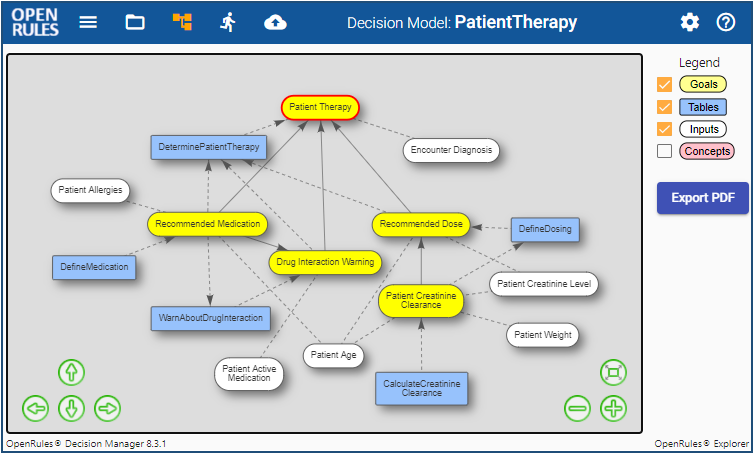
Each OpenRules project includes the batch file “explore.bat” that starts the Explorer. For example, the above Explorer’s view will be displayed when you double-click on this file from the standard decision project “PatientTherapy“. You can click on the icon  in the title bar to Open any other decision project.
Diagramming
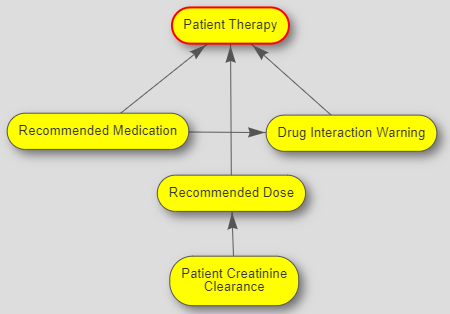
When you open OpenRules Explorer from the folder with an existing decision model for the first time, it will generate its diagram using only goals and sub-goals. This diagram reflects the Goal-Oriented Decision Modeling approach and in general, follows the DMN (Decision Model and Notation) graphical convention for decision requirement diagrams. All goals are shown as yellow rounded rectangles, and the main goal has a red border. The arrows between goals show the automatically (!) discovered knowledge relationships, e.g. the goal “Recommended Dose” depends on the sub-goal “Patient Creatinine Clearance”.
You don’t have to draw the diagram yourself as it’s being AUTOMATICALLY generated based on an already defined glossary, goal/sub-goals, and tables that specify their logic. You may freely move the diagram elements around and the Explorer will keep all relationships between them (arrows) intact.
Double-click on any node inside the diagram shows additional information about the node. For example, for a decision table, it can open the corresponding Excel file where this table is defined. When you make changes in Excel they will be immediately reflected on the diagram.
If you can click on the Main Menu icon  , it will show all menu items and the file structure of the rules repository:
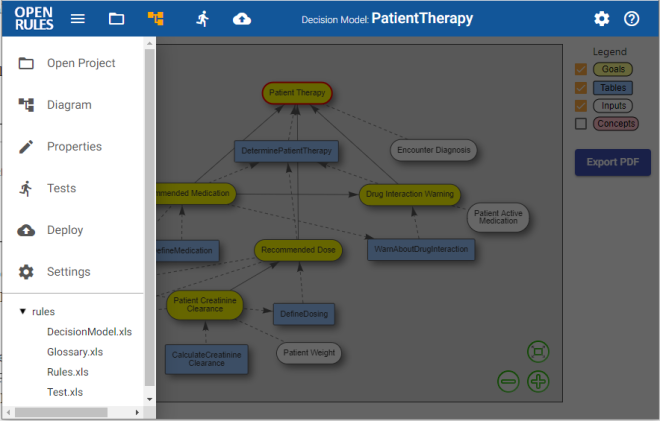
Diagram Views
You may create different diagram views of the same decision model by selecting different elements from the legend on the right. For example, if you select only “Goals” in the legend, the diagram may look as follows:
If you also select “Tables“, all related decision tables (and other business knowledge model elements such as “Decision”, “DecisionService”, “Code”, “Method”) will be shown as blue rectangles:
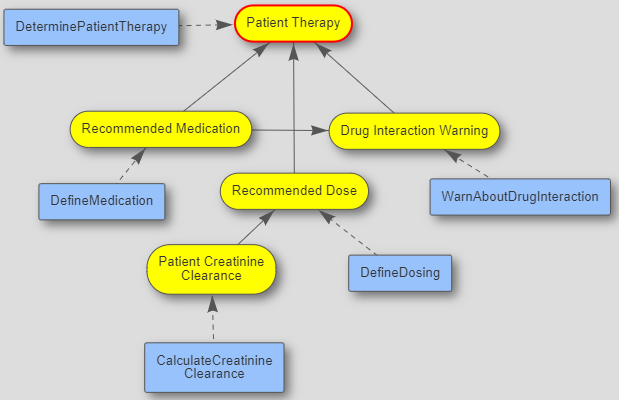
The dashed arrows from blue tables to goals prompt you that a table contains the logic that specifies the connected goal.
You may also select “Input“, then all decision variables will be shown as white rounded rectangles with dashed lines to the goals that use them:
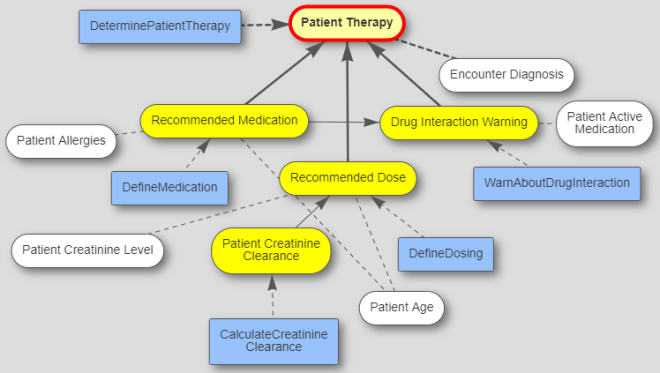
You may hide the “Input Data” and select “Concepts” to show the business concepts described in your glossary. They will be shown as pink rounded rectangles:
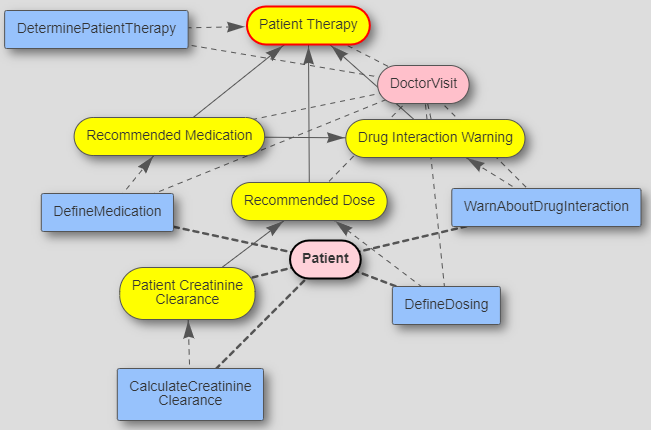
When you click on a concept or an input node all related dashed links will be highlighted. A double-click on a blue node such as “DefineMedication” will open a view with the proper decision table: 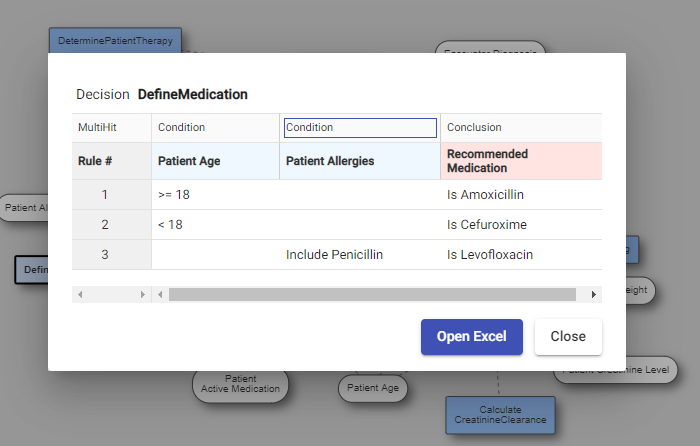
You may adjust the width of any column and click on the left of any rule to setup a breakpoint for the debugging. If you want to modify this table, click on “Open Excel”.
Diagram Manipulations
You can easily adjust diagrams in many ways. You may drag & drop any nodes and all automatically calculated links (arrows) will stay intact. You may use the following buttons to move the diagram around, zoom in/out, or put it in the center:
You can click on the button “Export PDF” to export the diagram to the PDF format in the file of your choice.
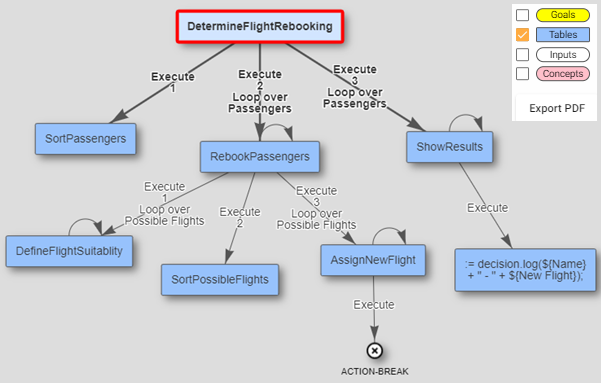
When a decision model iterates over collections of objects and sorts some of them like in a quite complex decision model “Flight Rebooking“, the automatically generated diagram explains complex relationships by putting clarifying labels such as “Execute …” on the proper links:
Live Decision Model Diagrams
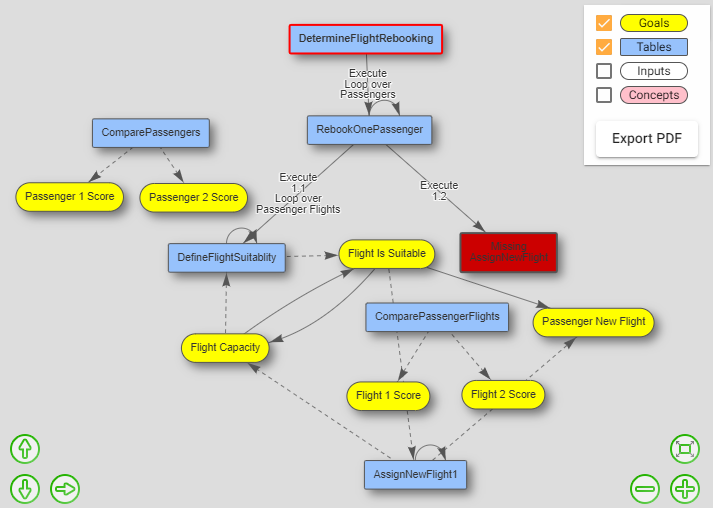
The generated diagrams will be automatically updated whenever the decision logic in the underlying Excel tables is changed (without a refresh button). If OpenRules Explorer recognizes missing nodes it shows them in red. Watch the video that demonstrates how OpenRules Explorer keeps decision model diagrams LIVE.
Here is the above diagram for “Flight Rebooking” being automatically modified when we commented out the decision table “AssignNewFlight”:
Testing Decision Model
You can test your decision model directly from Explorer by running test cases defined in Excel. Click on the icon  and you will see a view similar to this one:
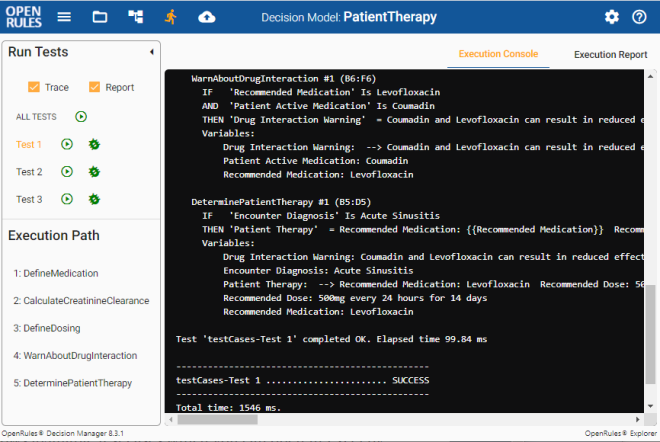
The left panel “Run Tests” shows all available test cases which you can open in Excel by clicking on the test name. The panel “Execution Path” shows all major execution steps (usual rulesets such as decision tables) in the automatically defined order.
You can execute ALL TESTS or only selected test cases. To execute a test case you may click on the corresponding icon  and you will see the results on the Execution Console. You may click on the tab “Execution Report” to see the automatically generated reports that show only actually executed rules with pointers to the places in Excel where they are defined, brief rules formulations, and all involved decision variables with their values in the time of the rule execution:
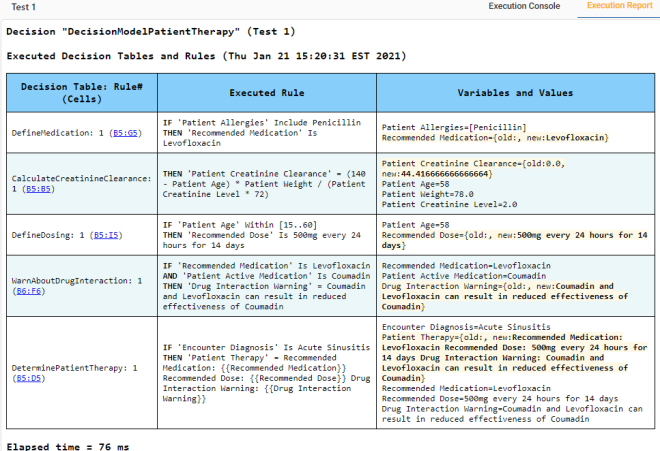
This information provides detailed explanation of what and why was executed.
Debugging Decision Model
You can debug your decision model by click on the Debug-button  :
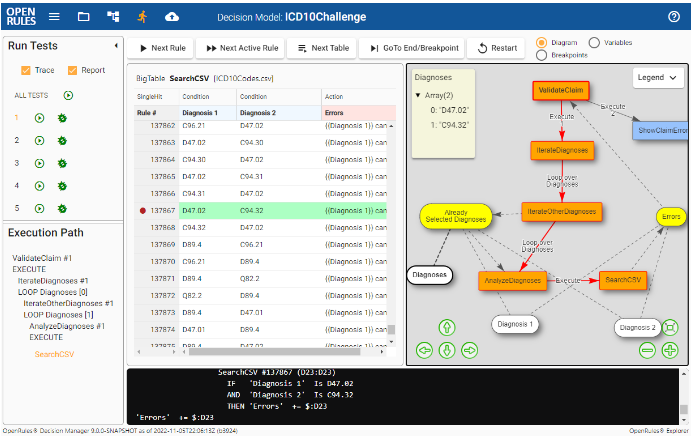
See the detailed description of OpenRules Debugger and watch the video.
Deploying Decision Model
OpenRules allows you to deploy your decision model as a regular Java program on-premises or on-cloud using the following deployment options:
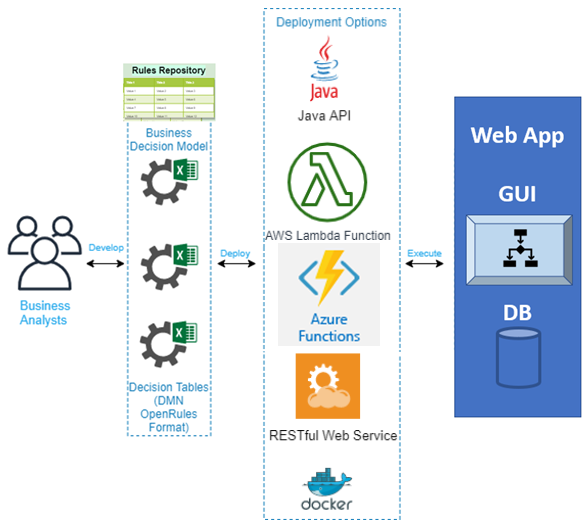
You may find more information about decision model deployment in the User Manual for Developers.
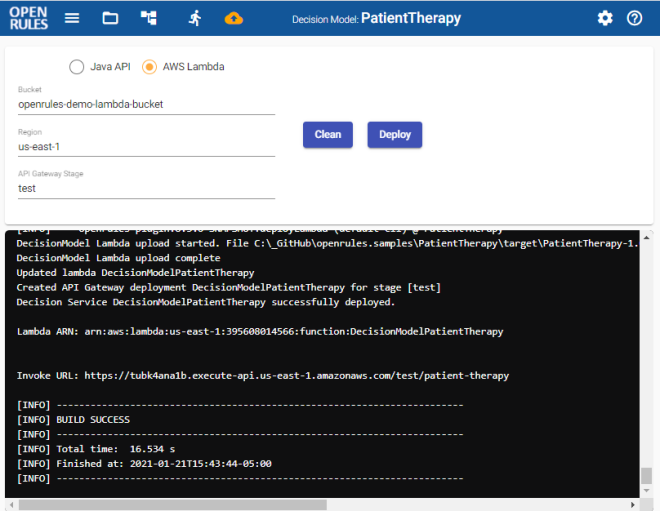
You can deploy your decision model directly from OpenRules Explorer using the “Deploy” menu-item  . You will see a view like this one:
Decision Tables
OpenRules uses classical decision tables which are in the heart of OpenRules from its introduction in 2003 and became the major decisioning construct of the DMN standard. OpenRules utilizes MS Excel and/or Google Sheets as the most powerful and commonly known table editors (but doesn’t rely on Excel’s formulas).
Decision Table Structure
OpenRules uses the keyword “DecisionTable” for the most frequently used single-hit decision tables. For example, let’s consider a very simple decision table:
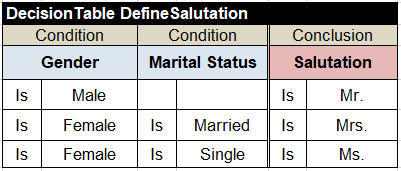
Its first row contains the keyword “DecisionTable” and a unique table’s name such as “DefineSalutation” (no spaces allowed). The second row uses the keywords “Condition” and “Conclusion” to specify the types of decision table columns. Instead of the keyword “Condition” you may it’s synonym “If”. Instead of the keyword “Conclusion” you may it’s synonyms “Then” or “Action”. All keywords are case-sensitive.
The third row contains the names of decision variables expressed in plain English (spaces are allowed). The columns of a decision table define conditions and conclusions using different operators and operands appropriate to the decision variable specified in the column headings.
The rows below the decision variable names specify multiple rules. For instance, the second rule can be read as:
“IF Gender is Female AND Marital Status is Married THEN Salutation is Mrs”.
This is an example of the horizontal decision table where rules are defined from top to bottom. The same decision table may be presented in the vertical format when rules are presented from left to right:
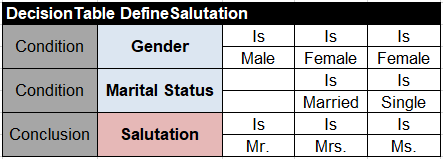
If some cells in the rule conditions are empty, it is assumed that this condition is satisfied. A decision table may have no conditions, but it always should contain at least one conclusion/action.
The conditions in a decision table are always connected by the logical operator “AND” and never by the operator “OR”. Each rule can be read as:
IF Condition-1 AND Condition-2 AND …
THEN Conclusion-1 AND Conclusion-2 AND …
When you need to use “OR”, you may add another rule that is an alternative to the previous rule(s). However, some conditions may have a decision variable defined as an array or a list of values. Within such array-conditions “ORs” can be expressed using commas. Consider the following decision table from the standard project “UpSellRules”: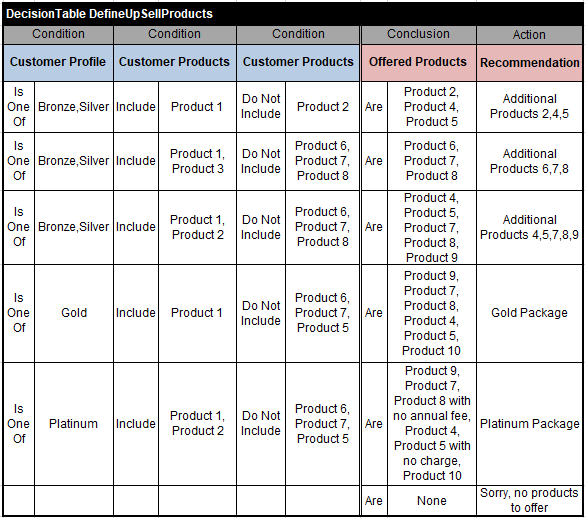
For instance, the second rule can be read as:
IF Customer Profile is one of Bronze or Silver
AND Customer Products include Product 1 and Product 3
AND Customer Products do not include Product 6, Product 7, and Product 8
THEN Offered Products are Product 6, Product 7, and Product 8
AND Recommendation is Additional Products 6,7,8.
Execution Logic
All rules are executed one-by-one in the order they are placed in the decision table. For the horizontal (default) decision tables, all rules (rows) are executed in top-down order. For vertical decision tables, all rules (columns) are executed in left-to-right order.
The execution logic of one rule is the following:
IF ALL conditions are satisfied THEN execute ALL actions.
If at least one condition is violated (evaluation of the code produces false), all other conditions in the same rule are ignored and not evaluated.** **Actions are executed only if all conditions in the same rule are satisfied. Conditions and actions with empty cells (or hyphens) are ignored.
There is a simple rule that governs rules execution inside a decision table:
The preceding rules are evaluated and executed first!
However, a designer of decision tables may specify different execution logic by using one of two major types:
-
Decision or DecisionMultiHit
-
DecisionTable or DecisionSingleHit
Note. OpenRules also provides a constraint-based rule engine to execute decision models in the inferential mode when an order of rules inside decision tables and between tables is not important.
Tables of the type “Decision”
These tables start with the keyword “Decision”. They evaluate rules one by one and execute all rules which conditions are satisfied. That’s why they are also called “multi-hit” decision tables. Instead of the keyword “Decision” you may use its synonym “DecisionMultiHit”. The main table for the above sample “Vacation Days” provides a typical example of a multi-hit decision table:
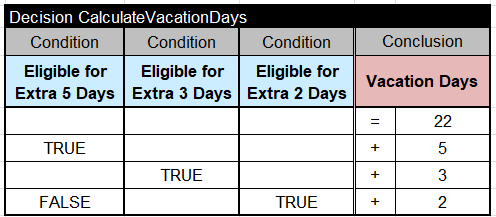
The table of the type “Decision” allows the actions of already executed rules to affect the conditions of rules specified after them. In this sense, they are like traditional programming languages. The table “Decision” supports the following rules execution logic:
-
Rules are evaluated in top-down order and if a rule condition is satisfied, then the rule actions are immediately executed.
-
Rule overrides are permitted. The action of any executed rule may override the action of any previously executed rule.
Let’s consider an example of driving eligibility logic: “A person of age 17 or older is eligible to drive. However, in Florida 16-year-olds can also drive”. We may present this logic using the following table of the type “Decision”:
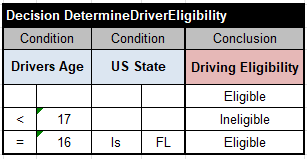
The first unconditional rule sets “Driving Eligibility” to “Eligible” (default!). The second rule may override this value with “Ineligible” for all people younger than 17. But for 16-year-olds living in Florida, the third rule will again assign the value “Eligible” to Driving Eligibility.
There are two important observations about the behavior of the tables “Decision”:
-
Rule actions can affect the conditions of other rules.
-
There could be rule overrides when rules defined below already executed rules could override already executed actions.
-
The default values are usually defined in the very first rule.
These tables naturally support the following logic:
** More specific rules should override more generic rules!**
For example, in the above table the Florida’s driving eligibility rules override the US rules as we defined them after (!) the US rules.
Tables of the type “DecisionTable”
These tables start with the keyword “DecisionTable”. They evaluate rules one by one and stop after the first “hit” when a rule is satisfied. That’s why they are also called “Single-Hit” decision tables. All 3 tables in the introductory example that specify decision logic for extra vacation days give examples of single-hit decision tables.
Let’s present the above table “DetermineDriverEligibility” using a single-hit table of the type “DecisionTable”:
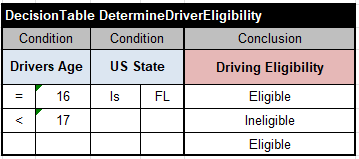
The first rule takes care of 16-year-olds living in FL. For all other people younger than 17 the second rule assigns the value “Ineligible” to the decision carriable “Driver Eligibility”. And the third unconditional rule (the default!) makes all other people Eligible.
Preferably, your rules should cover all possible combinations of decision variables inside the table’s conditions. Otherwise, it is good practice to catch and report an “impossible” situation in the last (default) rule.
Using Different Types of Decision Tables
The same decision logic could be represented by both types of tables “Decision” and/or “DecisionTable”. Let’s consider a situation when we need to calculate “TaxableIncome” using some formula and if the result is negative, we should assign make it equal to 0. If we use the table of the type “Decision” it may look as below:
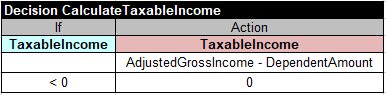
Here the decision variable “TaxableIncome” is present in both the condition and the action. The first (unconditional) rule will calculate and set its value using the proper formula. The second rule will check if the calculated value is less than 0. If it is true, this rule will reset this decision variable to 0.
The same logic could be expressed with a single-hit table “DecisionTable” such as: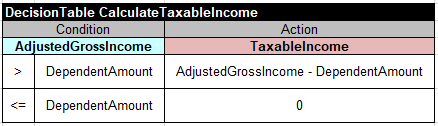
However, if your decision table contains hundreds or thousands of rules, single-hit is much more efficient than multi-hit.
In situations when you need rule overrides, multi-hit tables are the way to go. The only thing a decision model designer needs to do is to place “more specific” rules after “more generic” rules.
It is very convenient to use multi-hit decision tables to accumulate some data, e.g. in so-called “scorecards”. For example, the following decision table accumulates “Application Risk Score” based on 3 different conditions:
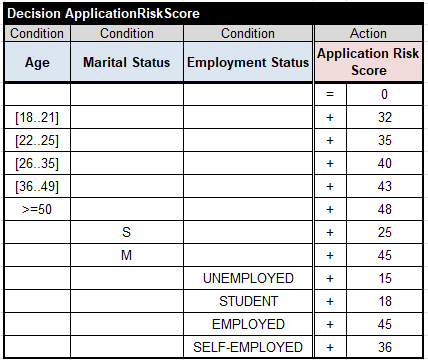
The first rule will unconditionally assign value 0. All other rules may increment the score using the operator “+” and the provided value (32, 35, 40, …).
Table Conditions
In the most cases table conditions are specified by the keywords “Condition” (or its synonym “If”) in the second row of a decision table, e.g.:

If a condition has two sub-columns it means the first one used by operators like “Is” or “>” and the second one – by values like “Male” or “1000”. Conditions without sub-columns assume that the operator is “=” or “Is”. However, you may place an operator in the front of a value in the same cell, e.g. “> 1000”. For consistency reason it is recommended to use two sub-columns.
The condition cells can contain specific values like “1000” or “> 1000” but they also contain names of other decision variables or even expressions. For instance, the above decision table “CalculateTaxableIncome” uses conditions:
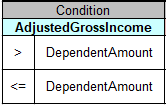
Comparing Strings
The following operators can be used for conditions to compare strings.
| Is | To compare two strings are the same. This comparison is case sensitive by default unless you changes it using the property “model.ignoreCase”. Instead of “Is” you also can write “=” or “==” (with an apostrophe in front of them to avoid confusion with Excel’s own formulas). Use the value null to check if a variable of type String, Date, Integer, Boolean, or any custom type is undefined. It will cause a syntax error if applied against a decision variable with a primitive type such as int, double, boolean. You may check the primitive variables against their default values (0 for int, 0.o for double, false for boolean). |
| Is Not | To check if two strings are not the same. This comparison is case sensitive. Synonyms: !=, isnot, Is Not Equal To, Not, Not Equal, Not Equal To. |
| Is Empty | Applied to check if a variable of the type String, Date, or a custom type like Customer is empty. The sub-column for the value should be TRUE/Yes or FALSE/No. |
| Contains | To compare if a decision variable contains certain values. For example, “House” contains “use”. The comparison is not case-sensitive. Synonym: Contain. |
| Does Not Contain | To compare if a decision variable does not contain certain values. For example, “House” doesn’t contain “user”. The comparison is not case-sensitive. |
| Starts With | To compare if a decision variable starts with certain values. For example, “House” starts with “ho”. The comparison is not case-sensitive. Synonym: Start. |
| Like | To check if a decision variable matches simple patterns with three wildcards:
Examples: ‘ABCD” is like ‘ab%’ and ‘732-993-3131’ is like ‘___-___-____’ This operator is not case sensitive. Synonym: Is Like. |
| Not Like | This operator is opposite to Like. This operator is not case sensitive. Synonym: Is Not Like. |
| Match | To check if a decision variable matches standard regular expressions. For example, you can use the expression “\d{3}-\d{3}-\d{4}” to check if the content of the decision variable is a valid US phone number such as 732-993-3131. Synonyms: Matches. |
| No Match | To check if a decision variable doesn’t match a regular expression. For example, you can use the expression “[0-9]{5}” to check if the content of the decision variable consists of 5 digits like a valid US zip code. The condition is satisfied if it is not true. Synonyms: Not Match, Does Not Match, Different, Different From. |
You may control case sensitivity of comparison operators by setting the property “model.ignoreCase” to FALSE or TRUE (in the Environment table or in “project.properties”).
You may change case sensitivity of a particular operator by adding [Ignore Case] or [Case Sensitive] after the operator.
Comparing Numbers
The following operators can be used for conditions to compare numbers (integer, real, or BigDecimal):
| Is | To compare two numbers are the same. Instead of “Is” you also can write “=” or “==” (with an apostrophe in front of them to avoid confusion with Excel’s own formulas) |
| Is Not | To check if two numbers are not the same. Synonyms: !=, isnot, Is Not Equal To, Not, Not Equal., Not Equal To |
| > | To check a number represented by the decision variable is strictly larger than the number in the column’ cell. Synonyms: Is More, More, Is More Than, Is Greater, Greater, Is Greater Than |
| >= | To check a number represented by the decision variable is larger than or equal to the number in the column’ cell. Synonyms: Is More Or Equal. Is More Or Equal To, Is More Than Or Equal To, Is Greater Or Equal To, Is Greater Than Or Equal To |
| <= | To check a number represented by the decision variable is smaller than or equal to the number in the column’ cell. Synonyms: Is Less Or Equal, Is Less Or Equal To, Is Less Than Or Equal To, Is Smaller Or Equal To, Is Smaller Or Equal To, Is Smaller Than Or Equal To |
| < | To check a number represented by the decision variable is strictly smaller than the number in the column’ cell. Synonyms: Is Less, Less, Is Less Than, Is Smaller, Smaller, Is Smaller Than |
| Within | To check if a decision variable is within the provided interval. The interval can be defined as: [0;9], (1;20], 5..10, between 5 and 10, more than 5 and less or equals 10. Synonyms: Inside, Inside Interval, Interval |
| Outside | To check if a decision variable is outside of the provided interval. The interval can be defined as: [0;9], (1;20], 5..10, between 5 and 10, more than 5 and less or equals 10. Synonyms: Outside Interval |
In conditions without operators OpenRules assumes the operator “Within” when an interval is specified. For example,
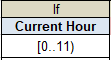
checks if the variable “Current Hour” is within the interval [0..11) assuming that 0 is included and 11 is not included.
Using Natural Language Inside Decision Tables
OpenRules allows a rules designer to use “almost” natural language expressions to represent intervals of numbers inside conditions without operators. You may define FROM-TO intervals in practically unlimited English using such phrases as: “500-1000”, “between 500 and 1000”, “Less than 16”, “More or equals to 17”, “17 and older”, “< 50”, “>= 10,000”, “70+”, “from 9 to 17”, “[12;14)”, etc.
You also may use many other ways to represent an interval of integers by specifying their two bounds or sometimes only one bound. Here are some examples of valid integer intervals:
| Cell Expression | Comment |
| 5 | equals to 5 |
| [5,10] | contains 5, 6, 7, 8, 9, and 10 |
| 5;10 | contains 5, 6, 7, 8, 9, and 10 |
| [5,10) | contains 5, 6,7,8, and 9 (but not 10) |
| [5..10) | The same as [5,10) |
| 5..10 | contains 5 and 10 |
| 5..10 | contains 5 and 10 |
| -5..20 | contains -5 and 20 |
| -5 .. -20 | error: left bound is greater than the right one |
| -5 ..-2 | contains -5, -4, -3, -2 |
| from 5 to 20 | contains 5 and 20 |
| less 5 | does not contain 5 |
| less than 5 | does not contain 5 |
| less or equals 5 | contains 5 |
| less or equal 5 | contains 5 |
| less or equals to 5 | contains 5 |
| smaller than 5 | does not contain 5 |
| more 10 | does not contain 10 |
| more than 10 | does not contain 10 |
| 10+ | more than 10 |
| >10 | does not contain 10 |
| >=10 | contains 10 |
| between 5 and 10 | contains 5 and 10 |
| no less than 10 | contains 10 |
| no more than 5 | contains 5 |
| equals to 5 | equals to 5 |
| greater or equal than 5 and less than 10 | contains 5 but not 10 |
| more than 5 less or equal than 10 | does not contain 5 and contains 10 |
| more than 5,111,111 and less or equal than 10,222,222 | does not contain 5,111,111 and contains 10,222,222 |
| [5’000;10’000’000) | contains 5,000 but not 10,000,000 |
| [5,000;10,000,000) | contains 5,000 but not 10,000,000 |
| (5000;10,000,000] | contains 5,000 and 10,000,000 |
You may represent integer intervals as you usually do in plain English. The only limitation is the following: lower bound should always go before upper bound!
Along with integer intervals, you may similarly represent intervals of real numbers. The bounds of double intervals could be integer or real numbers such as [2.7; 3.14).
Comparing Dates
OpenRules naturally supports date comparison with the operators =, !=, >, >=, <=, and < like in the following example:
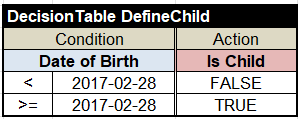
Because different countries use different Date formats we recommend using the commonly understandable ISO 8601 format “yyyy-MM-dd”. At the same time, OpenRules will recognize Date variables presented in the standard format specific for the majority of countries (using system locales). For example, the standard US date formats are “MM/dd/yyyy”, “MM/dd/yy HH:mm”, and “EEE MMM dd HH:mm:ss zzz yyyy”. We also recommend not to use the Date format when you define your dates in Excel: to avoid unnecessary conversion by Excel use a simple Text format.
To compare two Date variables, you may do it as in the following decision table:
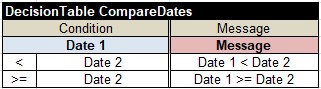
You may see more examples of how to use new Date operators by analyzing the sample project “HelloWithDates” available in the folder “openrules.samples”.
By default, OpenRules compares dates ignoring time. If you want to use time components of the Date variables, instead of the operators such as “<” you should use the operator “< time”, as in the table below:
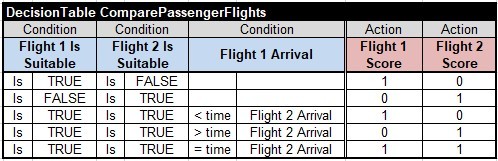
Comparing Boolean Values
If a decision variable has type “boolean”, e.g. “Employee is Veteran”, you can check if it’s true by using the following conditions:

You can use the following boolean values:
-
True, TRUE, Yes, YES
-
False, FALSE, No, NO
You also may compare two Boolean decision variables as below:
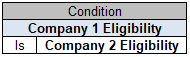
Checking if a Decision Variable is Undefined
If you want to check if a decision variable is undefined, you may compare it with a special value null. Here are examples e.g.

Only decision variables of types String, Date, Integer, Double, Boolean, or any custom type can be compared with null. It you try to compare a decision variable of a primitive type such as int, double, or boolean with null, you will receive a syntax error.
For variables of the type String or Date you may use the operator “Is Empty”:
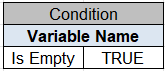
Other Condition Types
There are several convenience condition types described in the examples below.
ConditionBetween
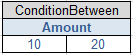
This condition of the type “ConditionBetween” check if the variable “Amount” is more or equals to 10 and less or equals to 20.
ConditionVarOperValue
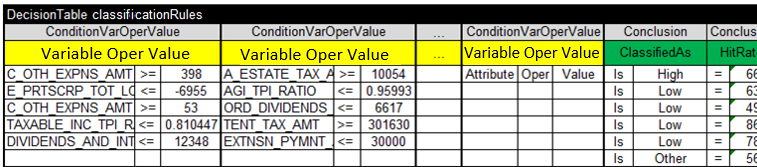
When your decision table contains too many columns it may become too large and unmanageable. In practice, large decision tables have many empty cells because not all decision variables participate in all rule conditions even if the proper columns are reserved or all rules. For example, here is a decision table taken from a real-world application that has more than 20 conditions (not all of them shown) with many empty rule cells:
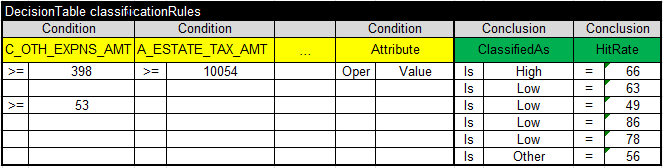
To make this decision table more compact, instead of the standard column’s structure with two sub-columns
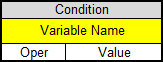
we may use another column representation with 3 sub-columns:
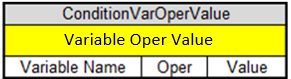
This way the above table will be replaced may with a much more compact table that may look as follows:
Conditions on Collections
In practice, business rules deal not only with separate decision variables but also with collections of decision variables such as arrays, lists, sets, or maps. OpenRules provides necessary constructs to use collections in conditions and conclusions.
Condition with Collection Operators
For example, this is a fragment of the decision table from the sample project “UpSellRules”:
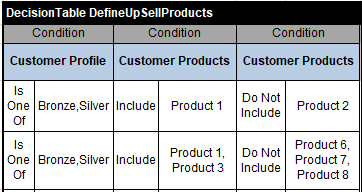
Here the variable “Customer Profile” is a regular variable of the type String, and the first condition simply checks if the value of the variable “Customer Profile” is one of two strings “Bronze” or “Silver”. However, the variable “Customer Products” is an array of strings that identifies all products this customer already has. So, the second condition checks if this array includes product “Product 1” (the first rule) or if it includes the products “Product 1” and “Product 3” (the second rule). The third condition checks if this array doesn’t include product “Product 2” (the first rule) or if it doesn’t include the products “Product 6”, “Product 7”, and “Product 8” (the second rule).
The following operators can be used for conditions defined on a variable and a collection:
| Is One Of | For integer and real numbers, and for strings. Checks if a value is among cell values listed through a comma. Synonyms: Is One, Is One of Many, Is Among, Among. |
| Is Not One Of | For integer and real numbers, and for strings. Checks if a value is NOT among cell values listed through a comma. Synonyms: Is not among, Not among. |
| Starts With One Of | To compare if a decision variable starts with one of values listed through commas. For example, “House” starts with one of the values “hou, mo”. |
| Does Not Start With One Of | Compare if a decision variable starts with one of values listed through commas and returns TRUE is it DOES NOT. For example, “House” does not start with one of values “Mo, Wo”. |
The following operators can be used for conditions defined on two collections:
| Include | To compare two collections. Returns true when the first collection includes all elements of the second collection. Synonyms: Include All |
| Exclude | This operator is opposite to the operator “Include”. Returns true when even one element of the first collection is not present in the second collection. Synonym: Does Not Include |
| Intersect | To compare a collection with another collection. Returns true when the first collection and the second collection have common elements. Synonyms: Intersect With, Intersects |
| Does Not Intersect | Returns true when the first collection and the second collection do not have common elements. Synonyms: Does not Intersect With, Exclude All |
When these operators deal with strings, they are case sensitive. You may control case sensitivity of all these operators by setting the property “model.ignoreCase” to FALSE or TRUE (in the Environment table or in “project.properties”).
You may control case sensitivity of a particular operator by adding [Ignore Case] or [Case Sensitive] at the end of the operator.
If the decision variables do not have an expected type for the specified operator, the proper syntax error will be diagnosed.
Note that the operators Is One Of, Is Not One Of, Include, Exclude, Intersect, and Does Not Intersect work with values separated by commas. Sometimes a comma could be a part of the value and you may want to use a different separator. In this case, you may simply add your separator character at the end of the operator. For example, if you want to check that your variable “Address” is one of “San Jose, CA” or “Fort Lauderdale, FL”, the comma between City and State should not be confused with a separator. In this case, you may use the operator “Is One Of #” or “Is One Of separated by #” with an array of possible addresses described as “San Jose, CA#Fort Lauderdale, FL”. Instead of the separator “ #” you may use any non-alphabetic character after a space, e.g. “ ^”.
What can you use as values of the above operators? There are 3 possible options:
-
Constants, e.g., Bronze, Silver or Product 6, Product 7, Product 8 in the above decision table
-
Decision variables, e.g., Var 1, Var 2, Const 2, Var 3
-
A single decision variable that represents a collection defined somewhere else (in a test data or another decision table).
A sample project “ArrayOperators” from the standard installation provides good examples of different cases.
ConditionMap
If the decision variable is a map (e.g. an instance of Java class HashMap) the following condition
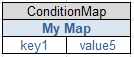
will check if the map-variable “My Map” contains a pair (“key1”,”values5”).
Table Conclusions
Simple Conclusions/Actions
There are two most used types of conclusions specified by the keywords “Conclusion” or its synonyms “Action” or “Then”, e.g.:

The columns of the type “Conclusion” may have two sub-columns: one for an operator like “Is” or “=” and another - for a value.
The following operators can be used inside decision table conclusions:
| Is | Assigns one value to the conclusion decision variable. Synonyms: =, == When you use “=” or “==” inside Excel, you have to put an apostrophe in front of them to avoid confusion with Excel’s formulas. |
| Assign Plus | Takes the conclusion decision variable, adds to it a value from the rule cell and saves the result in the same decision variable. Synonym: +, += |
| Assign Minus | Takes the conclusion decision variable, subtracts from it a value from the rule cell and saves the result in the same decision variable. Synonym: -, -= |
| Assign Multiply | Takes the conclusion decision variable, multiplies it by a value from the rule cell and saves the result in the same decision variable. Synonym: *, *= |
| Assign Divide | Takes the conclusion decision variable, divides it by a value from the rule cell and saves the result in the same decision variable. Synonym:/, /= |
The accumulation operators +, -, *, and / are usually used in scorecards such as the decision table above.
You may assign string using simple conclusion columns like in these decision tables:
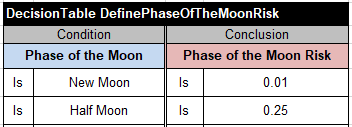
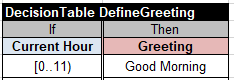 or
You may assign numbers (integer, real, BigDecimal) using simple conclusion columns like in these decision tables:
You may use “” (double quotes) or “ “ in the action cells to assign an empty string or a space character to a String variable.
Conclusions on Collections
When you want to assign some values to decision variables that are collections (such as arrays or lists) you can use the following operators:
| Are | Assigns one or more values listed through commas to the conclusion variable that is expected to be an array/collection |
| Add | Adds one or more values listed through commas to the conclusion variable that is expected to be an array/collection. Synonyms: + |
| Add Unique | Adds one or more values listed through commas to the conclusion variable that is expected to be an array but making sure that these values are not present in the array/collection. Synonyms: +unique, +u |
For example, if the decision variable “Offered Products” is an array (or a list) of strings, you use the following conclusion to assign to 3 products:
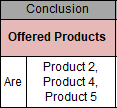
If after this conclusion you will also apply the following conclusion
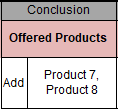
then the value of the variable “Offered Products” will become
{ “Product 2”, “Product 4”, “Product 5”, “Product 7”, “Product 8” }
Displaying Messages
There is a special conclusion types “Message” and “Print” or “ActionPrint” for displaying messages directly from decision tables. For example, the following action displays the message “Employee is eligible to 27 vacation days”:

But if you want instead of hard-coded 27 days to display the actual number of vacation days already calculated in the decision variable “VacationDays”, you may use this action:

The expressions {{Name}} and {{VacationDays}} will be replaced with their actual values. By using “{{“ and “}}” around variable names you explicitly say that you want to use their values.
After the message, OpenRules will also print [produced by <name of the decision table>].
The action “Message” displays messages only when the property “trace=On” (in the file “project.properties”). If “trace=Off” and you still want to show certain messages, e.g. critical errors, you may use “Print” instead of “Message”.
Displaying Rule Numbers
Sometimes, you want your message to refer to the rule that was applied. To do this, you may associate unique names with all rules in the column of the type “#” and then refer to these names in the Message column using $RULE_ID like in the following example:
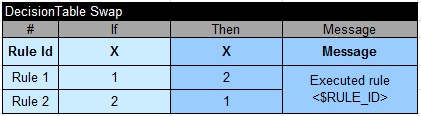
The message will be shown as “Executed rules <Rule 1>” or “Executed rules <Rule 2>”.
Expressions
OpenRules allows you to use expressions (formulas) in the decision table cells.
OpenRules supports the following expressions:
-
Simple formulas
-
Compositions of decision variables
-
Java Snippets.
Formulas
You may use naturally looking formulas that contain the names of your decision variable and traditional operation signs (+, -, *, /, and more) along with brackets to define the order of the operations. Here is a simple example:
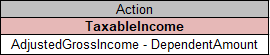
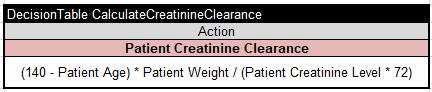
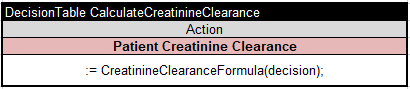
That will assign a difference between values of AdjustedGrossIncome and DependentAmount to the variable TaxableIncome. Here is a more complex formula from the example “PatientTherapy” that calculates Patient Creatinine Clearance:

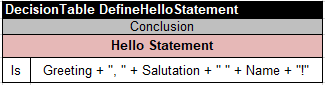
When your resulting decision variable has type “String” you can use the operator “+” to concatenate different strings (or even numbers). For example, this conclusion
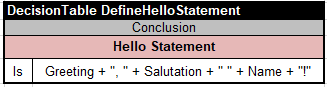
will use the values of decision variable “Greeting”, “Salutation”, and “Name” (defined in the Glossary of the standard project Hello) to define a Hello Statement that may look like “Good Afternoon, Ms. Robinson!”.
Alternatively, you may explicitly use string interpolation by taking decision variable names the double curly braces, “{{“ and “}}”. It will allow you not to use pluses and quotations and simply write:
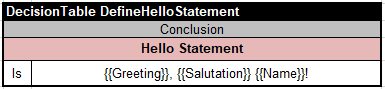
You also can use some simple functions like min(x,y) and max(x,y) like in the following actions borrowed from the standard project 1040EZ:
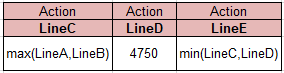
Here is a partial list of supported operators and functions:
Feature |
Syntax |
Examples |
Numbers |
regular integer or real numbers |
10, 465.25, -25, 3.14 |
Add |
x + y |
3+2 |
Subtract |
x - y |
3 - 2 |
Multiply |
x * y |
3 * 2 |
Divide |
x / y |
3/2 |
Power: x y |
pow(x,y) |
5**2 |
Negate |
-x |
-3 |
Comparison |
x < y |
2 <> 3 [produces 1] |
Logical "and" |
x and y |
1 and 1 [produces 1] |
Logical "or" |
x or y |
1 and 1 [produces 1] |
Absolute value |
abs(x) |
abs(-5) [produces 5] |
Maximum between two numbers |
max(x,y) |
max(5,6) [produces 6] |
Minimum between two numbers |
min(x,y) |
min(5,6) [produces 5] |
Floor |
floor(x) |
floor(3.5) [produces 3] |
Ceiling |
ceil(x) |
ceil(3.4) [produces 4] |
"π" |
PI |
The mathematical constant "π" |
e x |
exp(x) |
exp(1) = 2.7182818284590451 |
Rounding |
round(x) |
round(3.5) [produces 4] |
Square root |
sqrt(x) |
sqrt(9) [produces 3] |
OpenRules also supports many other operators and functions defined in the standard Java class Math.
Composing Decision Variable Names
All decision variables used in decision tables or test tables should be defined in the glossary. However, you may compose new complex decision variables out of the existing ones without declaring them in the Glossary. For example, a sample project “HelloNestedLocation” has two business concepts “Location” and “Customer” defined in this Glossary:
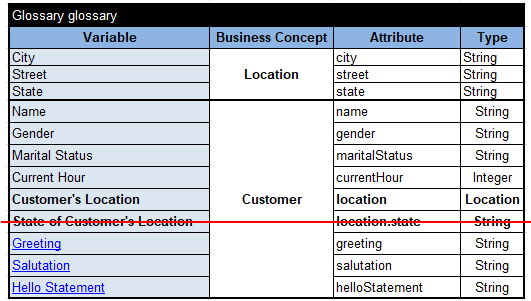
To produce a greeting like: “Good Afternoon, Ms. Kaye in CA!”, a user could create the following table:

However, starting with Release 10 it is not necessary to define “State of Customer’s Location” in the Glossary. This expression uses a special qualifier “of” and OpenRules can automatically recognize that you refer to the “State” of the “Customer’s Location”. So, you may remove the proper variable from the Glossary. Similarly, you may write {{City of Customer’s Location}}.
The corresponding test data may be defined in the following table:

Instead of the qualifier “of” you may use a special divider “::”. For instance, in the above table you may write {{Customer’s Location:: State}} instead of {{State of Customer’s Location}}.
When your glossary includes multiple nested objects, the qualifier “of” and divider “::” may be used multiple times inside the expressions. For instance, the standard sample “DepartmentsEmployeesLocations” deals with the concept Department which includes decision variable Manager of the type Employee. So, you to refer to his/her salary inside a decision table, you may simply write “Salary of Manager of Department” or “Department :: Manager :: Salary”.
Functions for Collections of Objects
OpenRules supports various functions for collections of objects that allow you to avoid using iteration loops for the calculation of typical collection characteristics. A typical sample project “AnalyzeEmployees” is included in the standard installation. It has the following glossary:
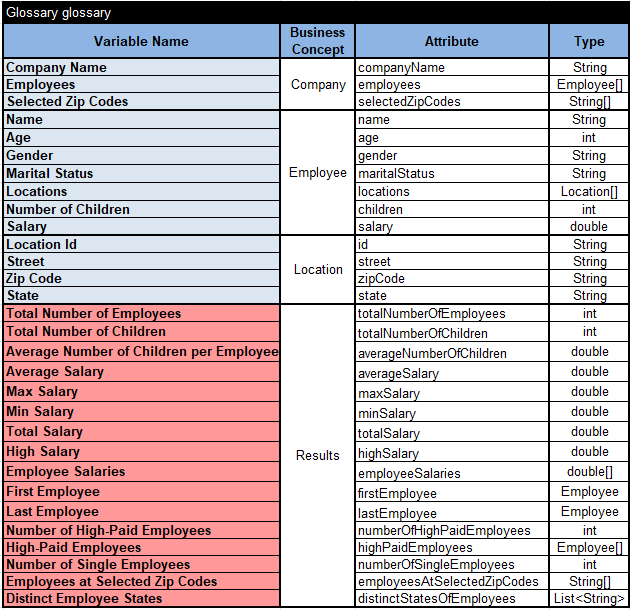
The “blue” decision variables represent input information. As you can see, the concept “Company” contains an array “Employees”. The concept “Employee” besides various characteristics of one employee (Name, Age, Gender, Salary, Number of Children) includes an array “Locations” as an employee may live in multiple locations.
The “red” decision variables represent the output of this decision model which should calculate their values. Of course, it could be done using decision tables for “for-each” loops (see below). However, it is much simpler to do it using the following decision table “ApplyFunctions”:
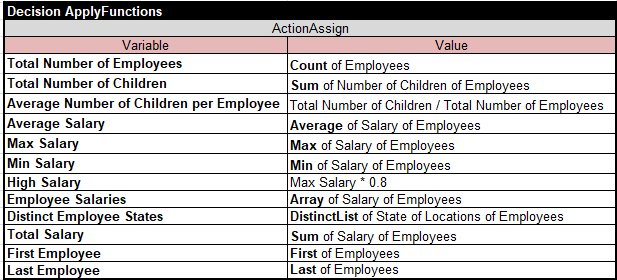
As you may guess, the expression
Count of Employees
returns the total number of employees inside the collection “Employees”. The expressions
Max of Salary of Employees
Average of Salary of Employees
returns the maximum and average salaries among all employees.
The expression
Sum of Number of Children of Employees
calculates the total number of children for all employees.
The expression First of Employees returns the first employee in the array Employees, and Salary of First of Employees returns his/her salary.
The expression
Array of Salary of Employees
returns an array of all salaries for all employees (the array’s type is defined in the glossary as double[]).
As an employee may have residences in different locations in different states, we may construct a list of all states (without duplications) where employees have residencies:
DistinctList of State of Locations of Employees
And we don’t need to use nested loops.
The first words inside these expressions are called functions and currently OpenRules supports the following functions on collections:
Count, Sum, Max, Min, Average, Array, List, Set,
DistinctArray, DistinctList, First, and Last.
You may use combinations of such functions as in these examples:
Average of Array of Salary of Employees
Count of DistinctList of State of Locations of Employees.
It is convenient to use these functions inside the “ActionAssign” as in the above decision table.
Java Snippets
You may use so-called “Java Snippets” inside decision table cells. They should start with a sign “:=” like in this example:
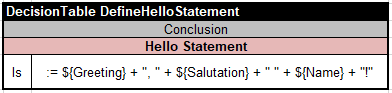
Similarly, the expression that calculates “Patient Creatinine Clearance” could be written using the following Java snippet:

In these examples, the ${Greeting} or ${Patient Age} refer to the value of the decision variable “Greeting” and “Patient Age”.
Java snippets allow users familiar with the basics of Java to write any arithmetic and logical formulas using valid Java expressions placed directly in the decision table cells but preceding by a sign “:=”. However, Java snippets are less friendly compared with simple expressions and business people may ignore this section.
To make Java snippets more readable to business users, OpenRules allows you to refer to the values of decision variables as ${variable name}. For instance, ${Amount} returns the value of the decision variable “Amount” with the type specified in the glossary (e.g., int or double). ${DOB} will return the actual date of birth. You also may refer to the entire business concept as ${business concept}. For instance, you may refer to the attribute “age” of the employee as ${Employee}.getAge().
It’s possible to hide a Java snippet inside a special table of the type “Method”, e.g.:

Then we may call this method from this decision table:
Inside Java snippets you may use regular operators “+”, “-”, “*”, “/”, “%” and any other valid Java operators. You may freely use parentheses to define the desired execution order. You also may use any standard or 3rd party Java methods and functions, e.g.
:= Math.min( ${Line A}, ${Line B} )
If you want to use the value of a decision variable such as “Customer Location” inside a decision table cell, you may simply write “Customer Location” in this cell (with or without quotes). You even may simply write $Customer Location.
While being more technical, Java snippets remove any limits from the expressive power of OpenRules. They allow using complex Java constructs like loops, functions, recursion, etc. They allow using any Java libraries created by your programmers or by 3rd parties.
Dealing with Dates
Here are examples of columns that assign dates:
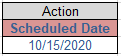
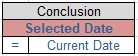
When you need to apply arithmetic operations with date variables such as calculating the number of years, months, or days between dates, you still need to use OpenRules Java snippets. For these purposes, you may use static methods of the class “Dates” included in the standard OpenRules library “com.openrule.tools”. For example, you may use the following Java snippet inside a condition cell of your decision table:
:= Dates.years( ${Date1}, ${Date2} ) >= 2
It checks that a number of years passed between the variables “Date1” and “Date2” is at least 2 years. You may calculate the age of the person from its birthday as follows:
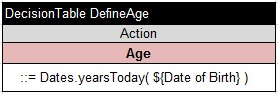
Similarly use the following methods:
Dates.months(Date d1, Date2 d2)
Dates.monthsToday(Date date)
Dates.days(Date d1, Date d2)
Dates.daysToday(Date d).
The standard library “com.openrule.tools” also includes methods that produce new dates:
addHours(date, hours)
* addDays(date,days)*
* addMonths(date,months)*
* addYears(date,years)*
* setYear(date,year)*
* setMonth(date,month)*
* setDay(date,day)*
* today()*
* newDate(year,month,day)*
* newDate(“yyyy-mm-dd”)*
You also may get integer values of year, month, and day by calling Dates methods getYear(date), getMonth(date), and getDay(date).
All these methods can be used for dates arithmetic like in this example:
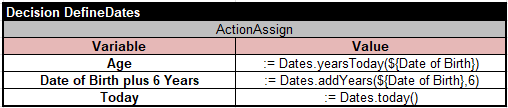
You just need to remember to add an “import.java” statement that points to “com.openrules.tools.Dates” to your Environment table.
Glossary
You’ve already seen many examples of the “Glossary” table that is in the heart of any decision model.
Standard Glossary
Usually the table “Glossary” contains 4 columns:
-
Decision Variable
-
Business Concept
-
Attribute
- Type.
Here is a typical table of the type Glossary from the sample project “PatientTherapy”:
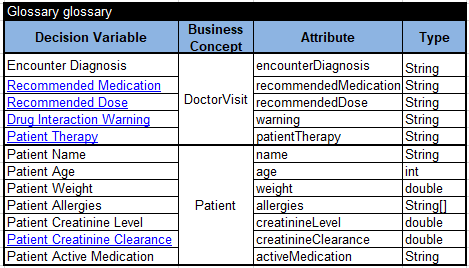
Column “Decision Variable”
This column should be always the first one as it defines the names of all decision variables exactly as they are used inside the decision tables. The names of decision variables should start with a letter or underscore and can contain only letters, digits, spaces, underscores, hyphens, and apostrophes (no other special characters allowed).
It is recommended to associate with the decision variables that represent goals/sub-goal hyperlinks to the decision tables that specify their logic.
Column “Business Concept”
This column should be defined as the second one – it associates different decision variables with the business concepts to which they belong. Usually, you want to keep decision variables that belong to the same business concept together and merge all rows in the column “Business Concept” that share the same concept.
Column “Attribute”
This column should be defined as the third one – it defines the technical names of decision variable that used for the integration of the decision model with input/output objects. The names of the attributes cannot contain spaces and usually follow the “Camel” naming convention for Java and JSON attributes. Usually business people should coordinate this column with their IT counterparts.
Column “Type”
This column specifies the types of the decision variables. The typical types are:
-
Integer or int - for integer numbers
-
Double or double – for real numbers (or Float/float)
-
String – for text variables
-
Date – for dates
-
Boolean or boolean – for logical variables with values TRUE (Yes) or FALSE (No).
You may add [] after the type, e.g. String[] to say that this is an array of strings. While it’s not important for business users to even know this, but these types are valid Java types. Actually, any Java types can be used in the column “Type”.
The column “Type” may even use the names of Business Concepts specified in this or other decision model glossaries or defined in 3rd party Java classes.
Optional Glossary Columns
Your Glossary may contain various optional columns after the column “Type” – their order is not important.
Column “Description”
The optional column “Description” provides a plain English description of the decision variable. It’s always a good practice to have the column “Description” in your glossary.
Column “Used As”
This optional column “Used As” allows you to set certain restrictions on how the decision variables are used by the decision model. If your glossary doesn’t include this column, then all (!) decision variables (except those defined in the Glossary’s formulas) will be included in the decision model output (response).
This column may restrict decision variable using the following properties or their combinations:
-
in – defines a variable as the decision model’s input
-
required – states that the input variable must have a value
-
out – defines the variable as the decision model’s output
-
tmp – hides the variable from JSON response
-
const – defines the variable as a constant.
These properties can be listed in the column “Used As” separated by commas. Below is the description of the most useful combinations of these properties.
The property “required” triggers the validation of the decision variable. If the corresponding variable is undefined, OpenRules will produce an error at the execution time. A variable is considered undefined in the following situations:
-
If the variable is defined using standard types such as String, Integer, Double, Boolean, etc. or custom business concepts defined in the glossary or Java, then it is undefined when its value is null
-
If a numeric decision variable is defined using Java primitive types such as int, long, double, or boolean then it is undefined if its value is zero. In this cases the attribute “required” is ignored for undefined variables.
You may specify the default value for the potentially undefined variable in the column “Default Value” (see below).
The property “out” tells OpenRules that this variable will be calculated within the decision model and should be included in the generated output such as the outgoing JSON structure.
If the cell of the column “Used As” is empty (no properties are defined), then the corresponding decision variable will be treated as a temporary variable that will not be included in the generated output.
The column “Used As” may be effectively used for security and performance improvement reasons. Only decision variables that are marked as out will be included in the output of the secure decision service and sent over the network back to the client.
Column “Default Value”
The column “Default Value” defines the default values of the decision variables which are required as an input but come to the decision model undefined (null). For example, in the following glossary
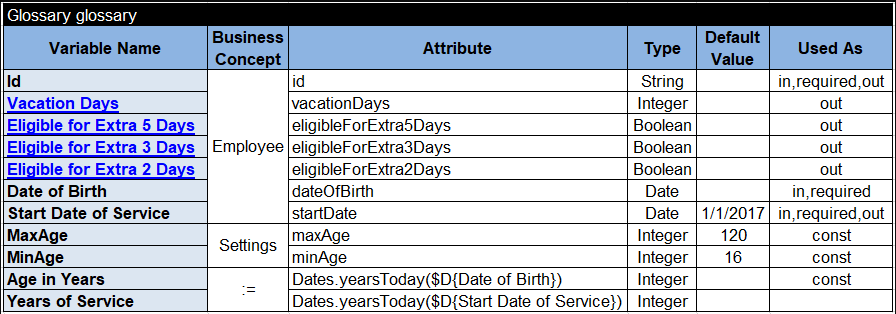
decision variable “Start Date of Service” has type Date and is a required input variable. If its actual input value is null, then the date 1/1/2017 will be used.
The constants MaxAge and MinAge are specified as 120 and 16 and can be used in decision tables as regular decision variables instead of hard-coded numbers.
In this glossary, these constants are not marked as out. Therefore, they both (and as a result, the entire concept “Settings”) will not be included in the outgoing JSON.
Formulas inside Glossary
Some decision variables can be calculated inside decision models using Glossary’s formulas instead of attributes. For example, in the above glossary, two last rows have a special indicator “:=” in the column “Business Concept”. It means the values for the proper two decision variables “Age in Years” and “Years of Service” will be calculated by using formulas (Java snippets) specified in the 3rd column:

These variables will be automatically calculated as the number of years from today until “Date of Birth” and “Start Date of Service” correspondingly.
By default, the values of decision variables defined by formulas are being recalculated whenever these variables are used inside the decision service. However, you can notice that the above glossary specifies “Age in Years” as const in the column “Used As”. It directs OpenRules to calculate the value of the variable “Age in Years” only once at its first read and will never recalculate it again. Sometimes it could save recalculation time and improve the overall performance.
Note. If a decision variable is defined in the Glossary using a formula, it should not be used in DecisionTest tables. It also will not be included in the JSON response.
Context-Specific Columns “Used As”
Sometimes you want to treat the same decision variables differently in different contexts. Let’s assume that when the above service is invoked from “Premise” we want its response to show all involved decision variables. However, when it is invoked from “Cloud” we want the response to include only Employee’s Id and the calculated vacation days and omit all other variables. It can be important for performance and/or security reasons.
To satisfy such requirements, we may introduce two different “Used As” columns, one for “Premise” and another for “Cloud”. We also may add a special decision variable “Invocation Source” with possible values “Premise” or “Cloud”. Here is the properly adjusted glossary:
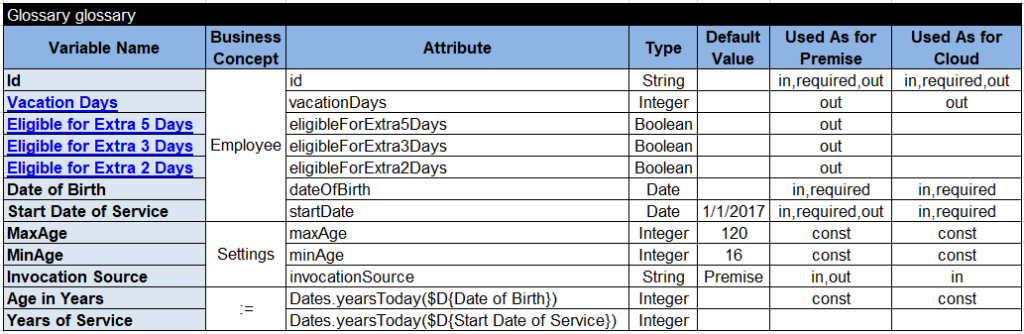
You can see, a new decision variable “Invocation Source” belongs to the business concept “Settings” with the default value “Premise”. The column “Used As” has been replaced by two columns: “Used As for Premise” and ”Used As for Cloud”. To direct OpenRules which UsedAs-column to choose, you can use the following decision table with the predefined name “UsedAsSelector”:
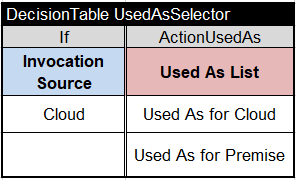
Now, OpenRules will dynamically decide which UsedAs-column to use based on the value of the decision variable “Invocation Source”. It will select “Used As for Cloud” if Invocation Source is Cloud and “Used As for Premise” in all other cases.
In this decision table you can use any decision variable instead on “Invocation Source” (or even combinations of decision variables) and use any UsedAs-list specified in the glossary. Only the name of the decision table “UsedAsSelector” is predefined.
The standard folder “openrules.demo” includes the decision project “VacationDaysWithUsedAs” that demonstrates the use of multiple UsedAs-lists.
Column “JSON Name”
The optional column “JSON Name” describes custom names that can be used in JSON tests instead of attribute names. For example, the glossary
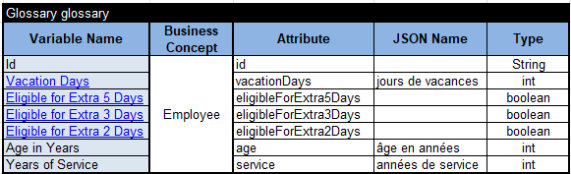
allows you to use the following JSON:
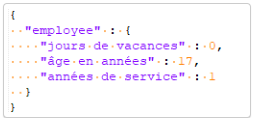
Column “Business Concept JSON Name”
The optional column “Business Concept JSON Name” describes custom names that can be used in JSON tests instead of the names of business concepts. For example, the sample project “VacationDaysJson” included in the standard installation, uses the following glossary:
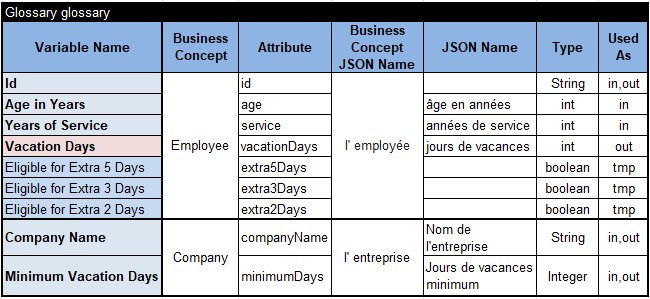
It specifies two business concepts “Employee” and “Company” and their JSON names in French are defined as “l’ employée” and “l’ entreprise” in the column “Business Concept JSON Name”. French names for their attributes are defined in the column “JSON Name”.
You can deploy this decision model as a REST service using “runLocalServer.bat”. Then if you test it with POSTMAN, you will get the following results:
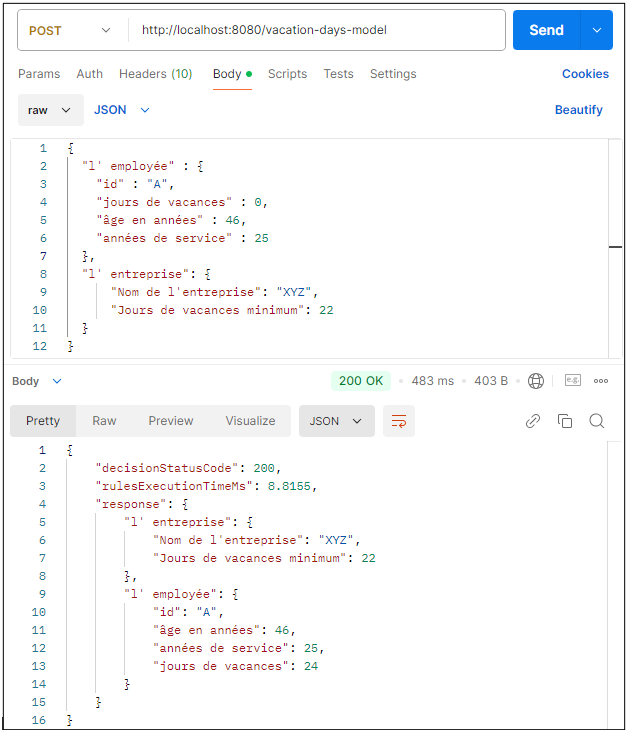
Instead of French, you may use any other language or English names with spaces and other special characters not allowed in the column “Attribute”.
Column “Domain”
The optional column “Domain” describes acceptable values (domain) of the decision variable. Only Rule Solver actually uses this column while in other products it is just for information.
Multiple Glossaries
Usually, a business model has one glossary. But if it’s too big, you may split it into several tables of the type “Glossary”. For example, the sample project “InsurancePremium” contains 3 files “GlossaryClient.xlsx”, “GlossaryDriver.xlsx”, and “GlossaryCar.xlsx” with separate Glossary tables for glossaryClient, glossaryDriver, and glossaryCar.
Big Decision Tables
When decision models use really big decision tables with tens and even hundreds of thousands of rules, the performance of the regular decision engine may go down. It becomes unacceptable especially when such tables need to be executed a million times a day. In many practical cases such large decision tables were simply moved from a database or from large CSV files to rules. Why do people do it? Because, after appreciating the simplicity and power of decision tables, they prefer to treat every row in their DB tables as a rule, so they can easily understand, change, and add more rules.
Using Tables “BigDecision” and “BigDecisionTable”
To handle big decision tables, OpenRules offers special types of decision tables “BigDecision” and “BigDecisionTable”. They look like regular decision tables but instead of the keyword “Decision” or “DecisionTable” they use “BigDecision” or “BigDecisionTable”. However, they are being evaluated using a completely different execution mechanism that is based on a self-balancing binary search algorithm adjusted to the logic of decision tables. And this mechanism **improves the performance of big decision tables 10 or sometimes 100 times! **
Let’s consider an example of a big decision table included in the standard installation as the “ openrules.samples /MedicalServiceCoverage” decision project:
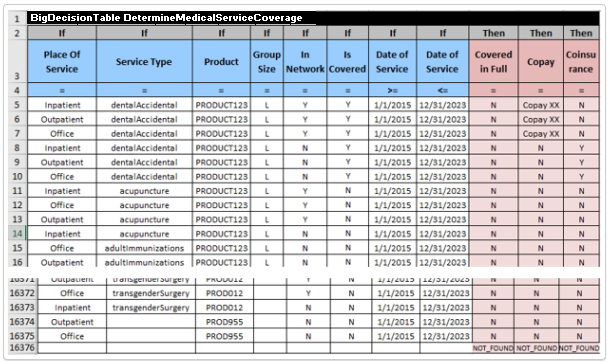
The actual table contains more than 16K rows (rules) and is located in the Excel file “Rules.xlsx” which occupies almost 3 MB. So, it is quite a big table. However, if you deploy and execute this table for different test cases, it will constantly show a great performance under 1 millisecond!
Please note there is an optional 4th row that for regular decision tables may contain any operator common for all rows in the proper columns. If this row is omitted, all operators are assumed to be “=”.
Condition columns of the 4th row may contain only comparison operators “=”, “>”, “<”, “>=”, “<=”. Action columns of the 4th row may operators “=”, +, +=, -, -=, *, *=, /, /=.
Cells may contain constants, single decision variables defined in the glossary, or strings with interpolations like {{Greeting}}, {{Name}}.
You always may change the keyword “BigDecisionTable” to “DecisionTable” and it will continue to work (but probably slower).
The above BigDecisionTable is an example of a single-hit decision table. If you change the above “BigDecisionTable” to “BigDecision”, it will find and execute several rules that satisfy your test criteria, and the latest satisfied rule will override previous rules. For multi-hit big decision tables, it can be useful to use increment/decrement operators “+” or “-” in the 4th row of the Action columns. For instance, in large scorecards, you may execute only a limited number of satisfying rules to accumulate a score in the Action column.
Thus, BigDecision/BigDecisionTable could be a good choice when your decision table contains thousands or even tens of thousands of rows. However, when it contains hundreds of thousands of rows, even Excel itself becomes much slower to search and requires much more time and memory to be downloaded in OpenRules. In this case, we recommend our customers to switch from the Excel to external files in CSV or fixed-width formats.
Using Decision Tables with CSV Files
It is easy for customers to save their Excel tables in CSV (Comma Separated Values) format using text files with the extension “.csv”. Then, instead of adding the rows from such CSV files directly into Excel-based BigDecisionTable, a customer may simply indicate where those rows are coming from. For example, the above decision table can be presented as follows:
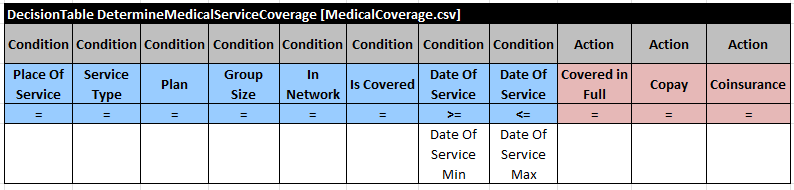
As you can see, now the first (signature) row contains a reference to the CSV file “MedicalCoverage.csv” where all “rules” are coming from:

This way you keep only business logic in an Excel-based decision table plus a reference to a CSV file with rules that become your data. For example, this table specifies that the “Date Of Service” should be between “Date Of Service Min” and “Date Of Service Max”. However, all rows inside the CSV file represent not rules but rather their thresholds (data!).
In the above table the CSV file is assumed to be in the same folder where the xls-file with the above table is located. However, you can use any valid URL path, e.g. [./data/MedicalCoverage.csv] would tell OpenRules that this CSV file is in the sub-folder “data” of the folder that contains the file “RulesWithCSV.xlsx”.
The CSV file itself looks as below:
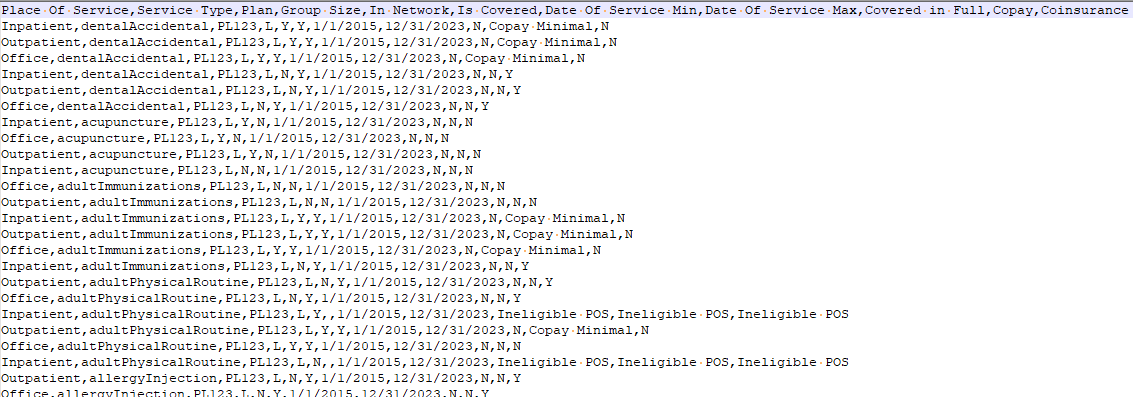
The first row of this CSV file contains a list of all column names separated by commas:
Place Of Service,Service Type,Plan,Group Size,In Network,Is Covered,Date Of Service Min,Date Of Service Max,Covered in Full,Copay,Coinsurance
Another good example of using a big decision table with large CSV files can be found in the standard installation project “openrules.samples/ICD10”. It uses this big decision table
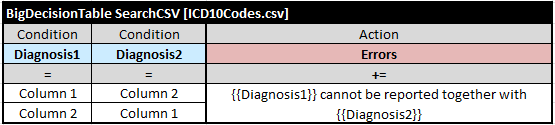
to find incompatible pairs of diagnoses defined in the CSV-file “ICDCodes.csv” that contains ~70,000 pairs such as:
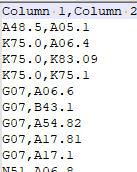
…
Note that Diagnosis1 and Diagnosis2 are decision variables described in the Glossary while Column 1 and Column 2 are titles of the two columns described only in the first row of the CSV file “ICDCodes.csv”.
You may use the following table of the type BigDecision to find finds out if the decision variable “Diagnosis Code” is “Found in Column 1” and accumulates all matching codes from the Column 2 in the decision variable “Matches in Column 2” which is defined in the glossary as an array of strings:

Note that here the action column “Found in Column 2” contains value “TRUE” in the cell of the second row (value “FALSE” is also allowed).
The following table demonstrates how to determine a Row Number inside the CSV file in which the decision table condition is satisfied for the very first time:
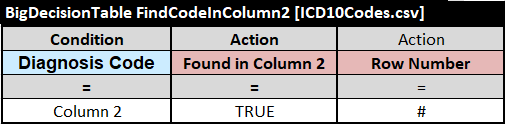
Here we use “#” to specify the found row number assuming the row numeration starts with 1. If this table cannot find the proper value in Column 2 of the CSV file, the Row Number will be 0 (meaning not found).
Keeping your rules (data) in external CSV files works exactly like it would work if these “rules” were located inside the Excel decision table. However, it is not only convenient for a user from the maintenance perspective, but brings two huge advantages:
- Performance: OpenRules handles large tables with data coming from CSV files almost in no time
- Memory: your decision model does not require a lot of memory anymore!
You can use CSV files in the described way for both types of OpenRules decision tables: regular decision tables and Big Tables.
Using Decision Tables with Fixed-Width Files
Instead of a CSV file, your rules (data) may come a fixed-width text file such as below:

Data in a fixed-width text file is arranged in rows and columns, with one entry per row. Each column has a fixed width, specified in characters, which determines the maximum amount of data it can contain. No delimiters are used to separate the fields in the file. Instead, smaller quantities of data are padded with spaces to fill the allotted space, such that the start of a given column can always be specified as an offset from the beginning of a line.
Let’s take the previous example but instead of the CSV file use the corresponding fixed-width file:
| CSV File “ICD10Codes.csv” | Fixed-width File “ICD10Codes.txt” |
|
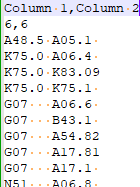 |
As you can see, we added two lines at the beginning of the fixed-width file:
-
First line with column names (exactly as for the CSV file)
-
Second line with column widths listed through commas.
It is important that each column has enough characters as defined by the column’s width. If the actual width is smaller than the required width, you need to add the corresponding number of spaces (including in the last column).
To tell OpenRules that you want to use file “ICD10Codes.txt” instead of file “ICD10Codes.csv”, you may simply make the proper change in your decision table:
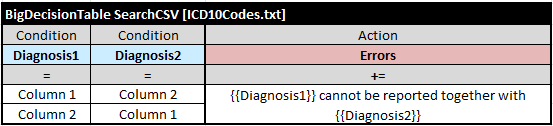
OpenRules will use the file extension “.txt” to figure out that the file in square brackets is a fixed-width file. You may download and run sample “ICD10WithFixedWidth” from the standard folder “openrules.samples”.
Using Decision Tables with Databases
Instead of keeping your data in Excel, in a CSV file, or in a fixed-width file, OpenRules allows you to get your data directly from a relational database. These capabilities are provided by OpenRules “RuleDB” product by empowering Excel-based business rules with run-time RDBMS communication mechanisms.
Let’s consider an example of how it works by migrating an SQL query to OpenRules. Consider this SQL query defined on the classic MySQL Sample Database:
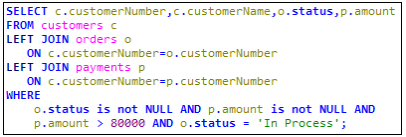
You may this SQL query to a special Excel-based table of the type “DataSQL“:

We moved only the technical part of the query that usually resides in FROM and JOIN statements. However, the WHERE part of the query also contained the technical (not business) information such as

that we added to the WHERE-column of our table “SelectedOrders”.
The business part of the query

does not depend on the way we select the records and can be migrated to the regular decision table:
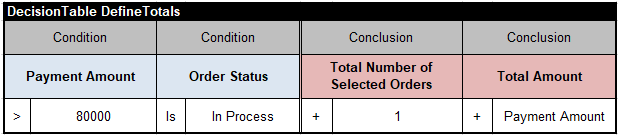
These business rules should be applied to every order selected from the data source “SelectedRecords”. It can be done by the iteration rules defined in this table:

To glue everything together, as usual with OpenRules we need to specify the Glossary:
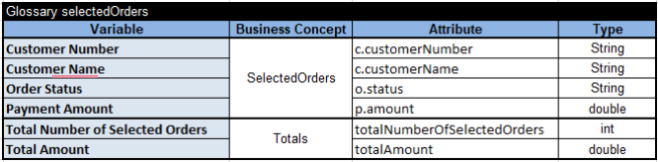
Note that here the business concept “SelectedOrders” is the same as defined above in the DataSQL table and its attributes use exactly the same names as defined in the query’s SELECT statement (with aliases ‘c’, ‘o’, and ‘p’).
Our decision model capable of talking to the Sample Database “classicmodels” is completed.
Dealing with Collections of Objects
Real-world decision models frequently use collections of business objects such as employees of the company or charges inside a bill. OpenRules provides business-friendly capabilities to deal with such collections including arrays and lists of objects. They allow a user to define which decision tables to execute against a collection of objects and to calculate values defined on the entire collection.
Iteration over Collections of Objects
Standard sample projects “AggregatedValues” and “AggregatedValuesWithLists” demonstrate how to iterate over collections of business objects. The business concept Employee is defined in the Java class Employee with different customer attributes such as name, age, gender, maritalStatus, salary, and wealthCategory. Another class Department defined the business concept Department that include employees defined as a collection of employees using an array Employee[] or ArrayList<Employee>.
We want to process all employees in each department to calculate such Department’s attributes as “minSalary”, “totalSalary”, “salaries”, “richEmployees” “numberOfHighPaidEmployees”, and other attributes, which are specified for the entire collection. Each employee within any department can be processed by the following rules:
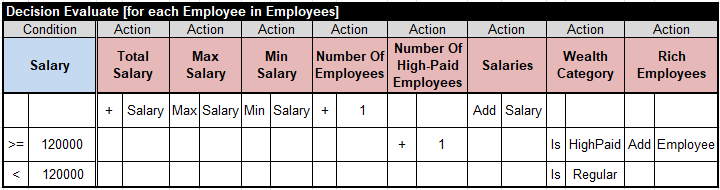
Pay attention that we use here a multi-hit table of the type “Decision”, so all satisfied rules will be executed. The first one unconditionally calculates the Total Salary, Maximal and Minimal Salaries, etc. The second rule defines Employee’s Wealth Category, increases the Number of High-Paid Employees inside the department using the accumulation operator “+”, and adds this employee to the collection “Rich Employees”.
The above decision table will be executed “for each Employee in Employees” as defined in its signature row:

This iteration provides business users with an intuitive way to apply rules over collections of business objects (without the necessity to deal with programming loops).
When you need to iterate through arrays/lists of the basic types such as String[], int[], double[], etc. instead of the business concepts you may use the corresponding decision variables. For example, the standard project “ICD10” the object Claim has a decision variable “Diagnoses” of the type String[]:
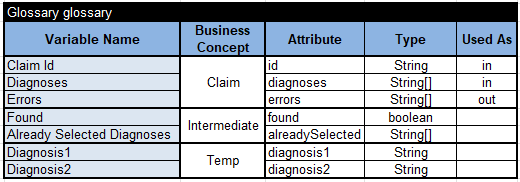
In this project, we need to iterate through the array “Diagnoses” twice using the nested loops defines as follows:
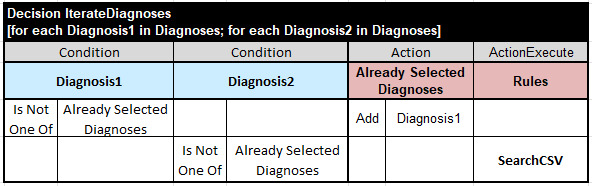
Here the first decision table “IterateDiagnoses” iterates over the array of Diagnoses for the first time using a temporary decision variable “Diagnosis 1” and for the second time using temporary decision variable “Diagnosis 2” (they are defined only withing these loops). To make sure that these variables are different, it uses an intermediate array “Already Selected Diagnoses”. For each unique pair (Diagnosis1; Diagnosis2) it executes the decision table “SearchCSV” that does a highly efficient search in the CSV file “ICD10Codes.csv”.
We can essentially simplify this decision model by using a special action-column “ActionNestedLoops”. Instead of the above table “IterateDiagnoses” we can use the following table:
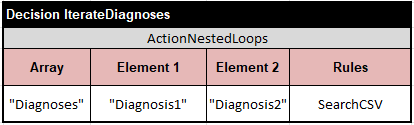
You will get the same results but without an intermediate check for uniqueness of pairs (Diagnosis1; Diagnosis2). You can even remove “Already Selected Diagnoses” from the Glossary.
Adding New Objects to Collections
You may use the standard column of the type “ActionNew” to add a new object to a collection of objects. For example, you may create a new instance of the type “Booking”, define its attributes, and add it to the collection “Bookings” using them the following table:
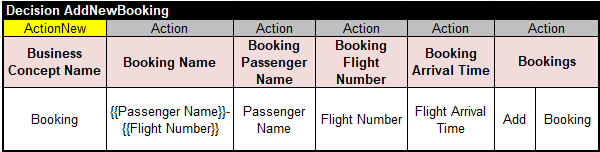
Sorting Collections of Objects
OpenRules allows you to easily sort arrays (or lists) of your business objects. You can use regular decision tables that define how compare any two elements of such arrays and add [sort <ArrayName>] at the end of its signature row. Let’s look at this sample:
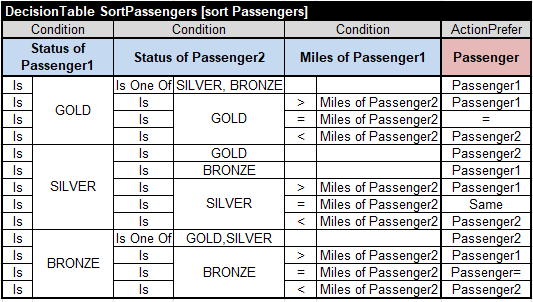
This table is taken from the standard project “SortPassengers” that shows how to sort the array of “Passengers” using their frequent flier status and a number of miles. For each pair of passengers “Passenger1” and “Passenger2” it selects a preferred passenger in the last column of the type “ActionPrefer”. When the statuses of both passengers are the same, the number of frequent miles serves as a tiebreaker. When even the miles are the same, you may use “=” or “Same” (or any other word different from Passenger1 and Passenger2). There is no need to define “Passenger1” and “Passenger2” in the glossary that simply looks as below:
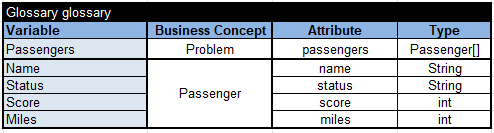
Here the array “Passengers” by itself is a decision variable defined inside the business concept “Problem”. The glossary does not include variables “Passenger1” and “Passenger2” as they are local variables used only inside the table “SortPassengers”. Their names are formed by the type “Passenger” of the array of “Passengers” plus the numbers 1 and 2.
This and a more complex project “FlightRebooking” can be found in the standard folder “openrules.samples“. Another sample project “SortProducts” demonstrates how to sort arrays of objects defined in the Java class Product that need to be Comparable.
Decision Model Testing
OpenRules provides all necessary tools to build, test, and debug your business decision models. The same people (subject matter experts) who created decision models can create test cases for these models using simple Excel tables or objects coming from the outside world (from Java, XML, or JSON). You’ve already seen test cases in the introductory example. Now we will explain how to create and use test cases.
Building Test Cases
You can use predefined OpenRules tables of the types “DecisionTest” and “DecisionData” to create executable test cases for your decision models.
Test Cases in “DecisionTest” Tables
Look at the decision model “PatientTherapy” included in the standard folder “openrules.samples”. The simplest way to provide data for testing this decision model is the following table of the type “DecisionTest” that describes 3 test cases:
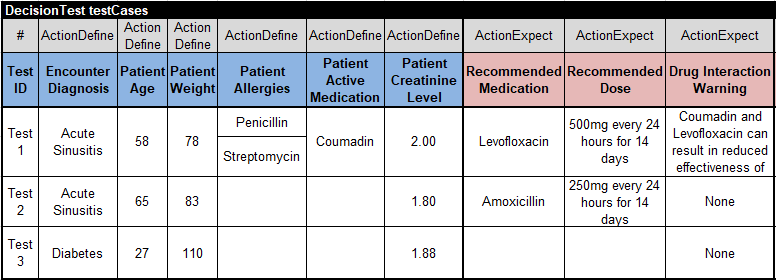
Blue columns of the type “ActionDefine” provide test values for input decision variables. Reddish columns of the type “ActionExpect” provide expected values for the proper output decision variables. If the expected values do not match the actual values produced during the decision model execution (using test.bat) OpenRules will display mismatches. For instance, if in the Test 2 you replace the expected Recommended Medication to “Levofloxacin”, you will receive the following error:

This table is self-explanatory. The only column that requires an explanation is “Patient Allergies” that defines a text array of the type String[] with potentially many allergies. So, here we used two sub-rows to represent two allergies and cells in all other columns for the Test 1 were merged. Of course, you can add as many sub-rows as you need. Alternatively, you may list all allergies separated by commas inside a one cell as below:
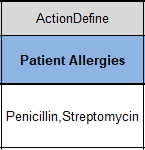
Active/Inactive Test Cases
You also may select which test cases you want to test at any moment. You may use the column of the type “ActionActive” to mark the active test cases like in the example “CreditCardApplication” below:
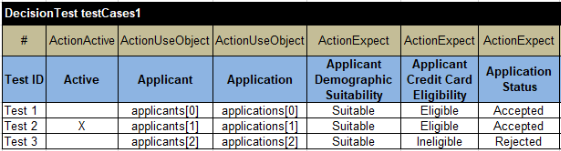
Here we marked only the second test case as “active” and during the execution, only this test case will be tried. If all cells in the column “ActionActive” are empty, then all tests will be executed.
You are not limited anymore to one DecisionTest table with the name “testCases”. You may create multiple DecisionTest tables with different names (they should be unique) and OpenRules will execute active test cases within all of them.
Test Arrays in “DecisionData” Tables
In more complex cases, it is more convenient to define separate data tables one for each business concepts. For instance, here is the data table for all test-patients:
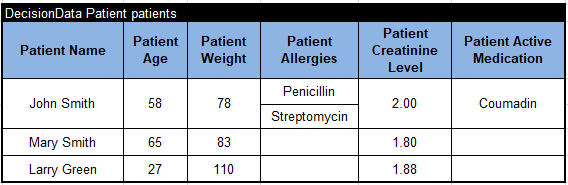
In the left top corner this table specifies its type “DecisionData” following the business concept “Patient” (defined in the Glossary) and the names of the array “patients”.
Similarly, you may define an array “visits” that provides data for the business concept “DoctorVisit”:
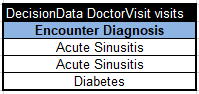
You can use these two arrays “patients” and “visits” to define the same test cases as above but in a more compact way:
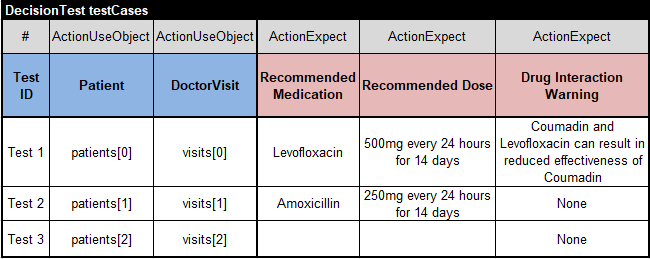
Here instead of 6 columns “ActionDefine” we use only 2 columns of the type “ActionUseObject”. Their cells refer to the elements of the arrays “patients” and “visits” using indexes starting with [0], e.g. patients[0] refers to the first element of the array patients, and visits[2] refers to the third element of the array visits.
Note. All keywords “ActionDefine”, “ActionExpect”, and “ActionUseObject” are case-sensitive.
References Between DecisionData Tables
Here is an example from the project “OrderPromotion” from the standard folder “openrules.samples”. The following DecisionData table defines an array of order items:
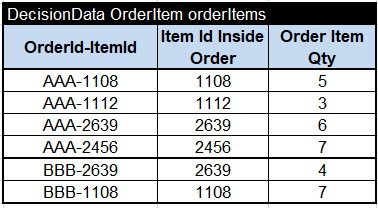
And this DecisionData table defines an array of order that specifies which order items from the array “orderItems” belong to which orders:
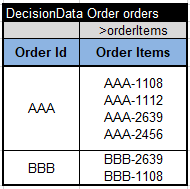
The 2rd column in the 2rd row includes the reference “>orderItems”. It tells OpenRules that the names such as “AAA-1112” or “BBB-2639” are actually the references (“primary keys”) to the proper rows in the array “orderItems”. In the second column each Order Item Id starts with a new line (in Excel use Alt+Enter).
Alternatively, you may put Order Items Ids in separate sub-rows in the second column and merge the proper cell in the first column:
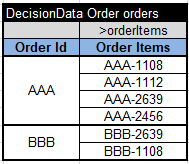
Note. Instead of defining test data in Excel, you may read data from relational databases by using special tables of the type “DataSQL” – see http://RuleDB.com.
Building and Testing Decision Model
Configuration File “project.properties”
After you complete the design of your decision model and its test cases, you need to adjust the standard file “project.properties”. An example of such a file was provided for the introductory model as follows:

Usually, you need only two properties:
-
model.file – it is usually the file “DecisionModel.xlsx” that describes the structure of your model in the Environment table
-
test.file – the name of the file that contains your test cases (it could be omitted if using test your model directly from Java)
There could be several optional properties:
-
run.class – the name of a Java class that will be used instead of the standard OpenRules class; see an example in the project “HelloJava”;
-
trace=On/Off – to show/hide all executed rules in the execution protocol;
-
report=On/Off – to generate or not the HTML-reports that show all executed rules (and only them) with explanations why they were executed;
More properties could be added for different deployment options.
Build and Run
To build and run your decision model, you need to double-click on the standard file “test.bat“. If you run it for the first time or made any changes in your decision mode, first it will build your model. During the “build” OpenRules will do the following:
-
analyze the decision model for errors and consistency.
-
if everything is OK, it will automatically generate Java code for your model used for testing and execution.
-
if OpenRules finds errors in your design, it will show them in red in the execution protocol.
-
Runs the generated code against your test cases.
Error Reporting
OpenRules is trying to find as many errors as possible in your decision model and report them in friendly business terms. For example, let’s get back to the introductory decision model “VacationDays” and make a mistake in the decision table “CalculateVacationDays” by omitting a space in the name of the decision variable “Eligiblefor Extra 5 Days”. OpenRules will catch the error and will show it as follows:

We highlighted the error message. As you can see OpenRules reports that the variable “Eligiblefor Extra 5 Days” not found and points to the exact place in your Excel files where the error occurred. It is a very important feature of OpenRules, as the generated Java code keeps track of the original Excel tables and produces all messages and explanations in the business terms used by the decision model author in Excel.
P.S. The generated Java code will be used internally to deploy and execute your model. As a business analyst, you even don’t have to look at them or to know where they are located. Nobody ever should modify the generated files as they will be automatically re-generated when you modify your decision model.
Testing Decision Model
You can fix the error in the file Rules.xlsx by adding a space between the words “Eligible” and “for” and double-click on “test.bat” again. It will re-build your decision model and execute it against all test-cases. Here is an execution protocol (for the first test case only):
The protocol shows all executed actions and their results. Along with the execution protocol, “test.bat” also produces the explanation reports in the folder “report” using a friendly HTML format. It shows all executed rules and values of the involved decision variables in the moment of execution – see the above [example](#Decision_Model).
Decision Model Deployment
OpenRules provides all the necessary facilities to simplify the integration of business decision models with modern enterprise-level applications. Tested decision models may be easily deployed on-premises or on-cloud. The deployment type is usually defined by the property “deployment” in the file “project.properties”. It can take the following values:
-
aws-lambda - for AWS Lambda functions
-
azure-function - for MS Azure functions
-
rest - for RESTful services using OpenRules REST
-
spring-boot - for RESTful services using SpringBoot
-
java (default) - for Java API.
Examples of new deployment capabilities are presented in the Vacation Days sample projects included into the standard installation “openrules.install”. Now it has the following projects:
- VacationDays - a basic decision project that contains mainly an Excel-based decision model in the rule repository “rules”. The major decision model properties are now located in the table “Environment” of the file “DecisionModel.xlsx”:
The file “project.properties” only refers to the decision model files and execution properties:
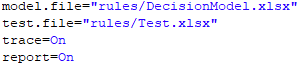
All other Vacation Days projects refer to the same rules repository and demonstrate different deployment options.
- VacationDaysJava - a basic decision project that demonstrates Java integration. It uses “Employee.java” in src/main/java instead of automatically generated Java class in the folder “target”. Its “project.properties” file looks as follows:

It includes many well-commented examples of Java programs such as “SamplesJsonEmployees” which demonstrates OpenRules Java API.
- VacationDaysLambda - a decision project that demonstrates how to deploy the decision model “VacationDays” as an AWS Lambda function. Its “project.properties” file looks as follows:
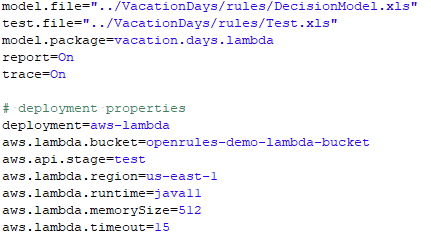
Note that the “model.package” defined in the “project.properties” overrides the one in the Environment table. Look at the automatically generated test cases in the JSON format in the folder “jsons”. You may use them in POSTMAN after you call “deployLambda.bat”. There is a new batch file “buildLambda.bat” that packages the decision model as one zip-file “target/VacationDaysLambda-1.0.0.jar” to be used for custom AWS Lambda deployment.
- VacationDaysAzure - a decision project that demonstrates how to deploy the decision model “VacationDays” as an MS Azure function. Its “project.properties” file looks as follows:
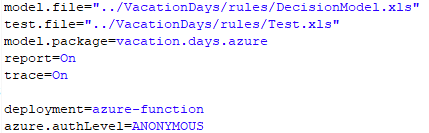
All Azure configuration information is specified in the file “pom.xml”.
- VacationDaysRest - a decision project that demonstrates how to deploy the decision model “VacationDays” as a RESTful web service (currently OpenRules REST utilizes Undertow). It requires only a minimal configuration, and produces decision services with small memory footprints and high efficiency. Its “project.properties” file looks as follows:
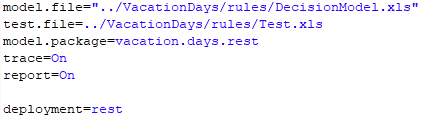
- VacationDaysSpringBoot - a decision project that demonstrates how to deploy the decision model “VacationDays” as a RESTful web service using SpringBoot. Its “project.properties” file looks as follows:
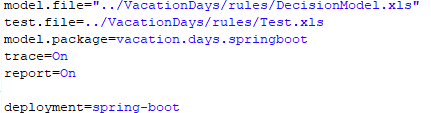
You also may package your decision model as a Docker image making it ready to be deployed to any of the following container registries:
-
Google Container Registry (GCR)
-
Amazon Elastic Container Registry (ECR)
-
Docker Hub Registry
-
Azure Container Registry (ACR).
You may find more details how these projects work in the User Manual for Developers.
Rules-based Service Orchestration
OpenRules provides business users with the ability to build and deploy operational decision microservices. It empowers business users with an ability to assemble new decision services by orchestrating existing decision services independently of how they built and deployed. The service orchestration logic is a business logic too, so it is only natural to apply the decision modeling approach to orchestration. To orchestrate different services, you may create a special orchestration decision model that describes under which conditions such services should be invoked and how to react to their execution results.
OpenRules decision tables have special action-columns of the type “ActionExecute” that is usually used to execute different services upon certain conditions without worrying how they were implemented and deployed. To describe such external services OpenRules added a special new table “DecisionService“. You may download a special workspace “openrules.loan” that implements a library of decision services described in the Loan Origination example from the DMN Section 11.
The workspace “openrules.loan” contains several decision models with two main goals “BureauStrategy” and “Routing” deployed as external decision services:
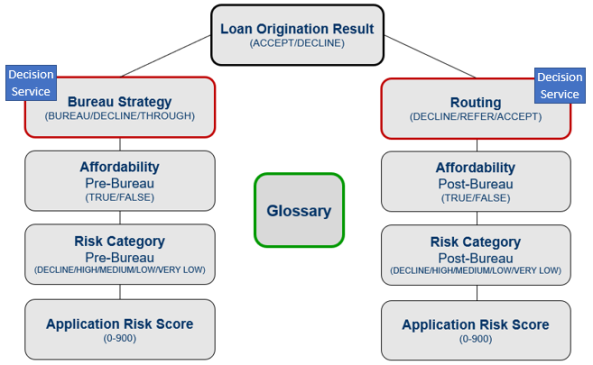
The high-level goal “Loan Origination Result” is an example of the orchestration decision models.
If you open this decision model in OpenRules Explorer, it will be displayed using the following diagram:
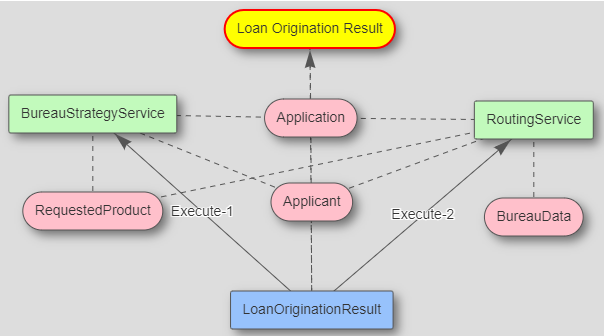
This decision model is not aware of the internal structure of these two decision services which are shown as green rectangles. However, we can see the decision table “LoanOriginationResult” that invokes these services and business concepts (pink rounded rectangles) used by these services.
You may find more information about service orchestration in the User Manual for Developers.
Technical Support
Direct all your technical questions to support@openrules.com or this Discussion Group. Read more.