
Rule Solver allows creators of business decision models to define unknown decision variables, define and post constraints to express their relationships, and rely on predefined search strategies to find with the proper decisions. To do this, Rule Solver introduces new types of decision table columns allowing a user to mix and match business rules with technical constraints within the same decision tables. Rule Solver provides several predefined templates for definition and resolution of constraint satisfaction and optimization problems:
- Defining Constrained Variables
- Posting Constraints
- Constraints with Probabilities
- Defining Optimization Objective
- Search Methods
PROBLEM DEFINITION and PROBLEM RESOLUTION
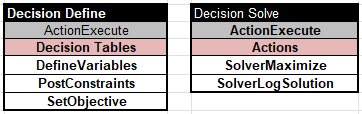
Decision models that utilize Rule Solver usually use as the main “model.goal=DefineAndSolve” in their Environment table. This is a predefined goal that invokes two custom decision tables you need to include in your decision model:
- “Define” for Problem Definition and
- “Solve” for Problem Resolution.
Here are typical “Define” and “Solve” tables:
DEFINING CONSTRAINED VARIABLES
There are two ways to create Solver decision variables that represent problem unknowns:
- Using “Glossary”
- Using the column “SolverDefineVariables”.
In this example, we define three Solver variables X, Y, and Z, with possible values from 1 to 10 specified in the column “Domain” of the following Glossary:

In the example “FamilyRiddle“, we define two arrays with unknown ages for every child in arrays ReneChildren and LeoChildren:
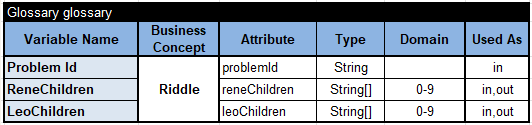
Solver will create decision variables with possible values from 0 to 9 representing children’s ages.
In the example “Zoo“, we can define an array of Solver variables (unknowns) that correspond to the array “BusTypes”:
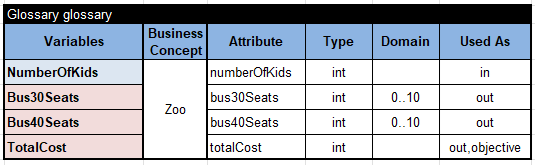
Alternatively, instead of the column “Domain” inside a glossary, you can define Solver decision variables using the predefined column “SolverDefine” within regular decision tables. Here is how it will look for the Zoo example:
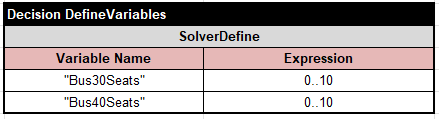
If you want to define the domain bounds dynamically, you can add another decision variable, MaxNumberOfBuses, which can be calculated using the following formula inside the glossary:
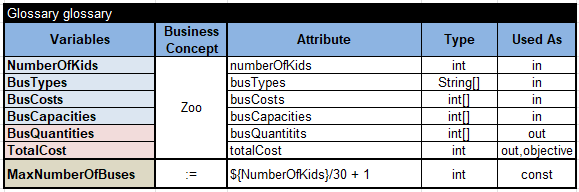
Then you can modify the table “DefineVariables”:
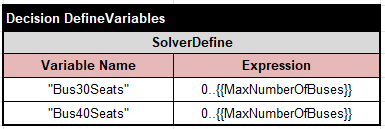
You may define solver variables inside decision tables with regular for-each loops. For example, here is an alternative way to define Zoo variables and at the same time to place them inside the array “TypeVariables”:

Arrays of solver variables are very handy for defining the sum of all variables and their scalar products.
The “SolverDefine” column lets you define new Solver variables using intuitive arithmetic expressions that mix known and unknown decision variables. For instance, any of the following tables define the Solver variable Cost using a regular arithmetic expression:
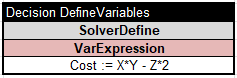
The following table from the sample “VacationDays” demonstrates the use of the scalar product of the array of Solver variables “Vacation Benefit Types” and the regular integer array “Vacation Benefit Days”:
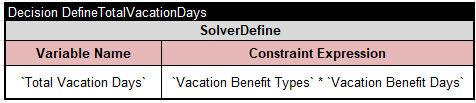
The names of the arrays are taken into backticks because they contain spaces.
We recommend you avoid using spaces inside variable names, so you would not need to use backticks.
In the more complex example “InsideOutsideProduction,” the names of Solver variables are defined dynamically in the loop:

Here, for each product P in the array of Products, we create two Solver variables with names Inside{{ProductId of P}} and Outside{{ProductId of P}}, where {{ProductId of P}} represents the concrete product name, so the variable could have names* InsideP1*. OutsideP2, DemandP2, etc.
The following table defines 4 Solver variables whose names are already defined in the Glossary and which are used as objectives:
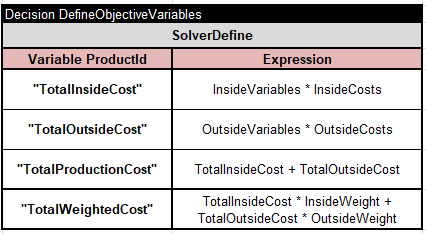
You may find more examples of how to define new Solver variables here.
POSTING CONSTRAINTS
We may post constraints within regular decision tables using the predefined column “SolverPost“. Here is a simple constraint posting table from “VacationDays“:
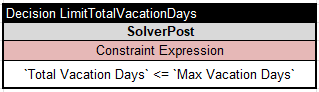
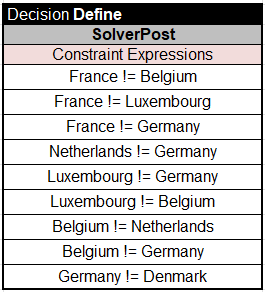
Here are simple “Map Coloring” constraints:
Here are examples of more complex constraint posting from the sample “Where is Zebra?“:
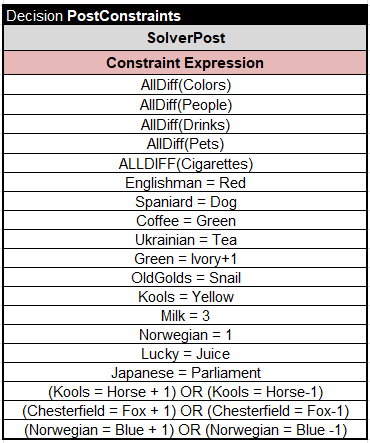
Pay attention to the last three constraints that use a logical operator “or” stating that the constraint on the left *(Kools = Horse +1) *or the constraint on the right (Kools = Horse -1) should be satisfied.
This table from “Miss Manners” uses the implication operator “->” that supports “if-then” logic:
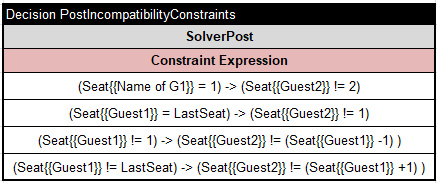
For instance, the first constraint states that **if **a guest G1 occupies the first seat, then the guest G2 cannot occupy the second seat.
You may find more constraint posting examples here.
DEFINING OPTIMIZATION OBJECTIVE
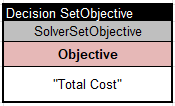
If your problem is an optimization problem and needs to define an optimization objective as an expression using other decision variables. For example, in the decision model “Zoo” the optimization objective is “Total Cost” defined as a scalar product of solver variables “Bus Variables” and integer constants “Bus Costs”. To inform Rule Solver that this variable will be used as an optimization objective, we use the following table with the predefined column “SolverSetObjective“:
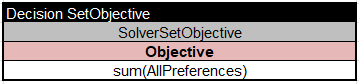
You may use expressions when defining the objective. Here is an example from “StableMarriages“:
PREDEFINED SEARCH METHODS
With Rule Solver you mainly concentrate on the problem definition, defining decision variables and posting constraints on them. The problem resolution relies on the predefined decision tables with search methods and/or column templates. The most popular predefined search methods are:
- SolverFindSolution – finds a feasible solution
- SolverMinimize – finds a solution that minimizes an already-defined objective
- SolverMaximize – finds a solution that maximizes an already-defined objective
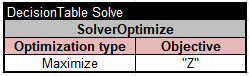
The column “SolverOptimize” defines an objective and calls the proper method to minimize or maximize it:
The method “SolverLogSolution” prints the found solution.
The method “SolverFindAllSolutions” can find ALL solutions and then you can print them using the method “SolverLogSolutions“. If there are too many solutions, you may limit the maximal number of considered solutions using the following table:
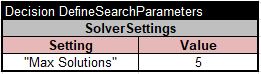
Actually, you may define other Solver settings in this table, for instance:
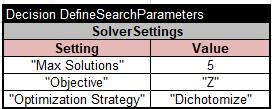
Optimization Strategy can have two values:
- Basic (default), which, after finding one solution, tries to find a next one with a smaller objective.
- Dichotomize, which, after finding one solution, tries to find a next one by dividing the remaining domain of the objective variable into two parts.
All search methods automatically save the found solutions by assigning the found values of Solver variables to the business variables with the same name. However, the names can be different, and you can add your own decision table “SaveSolution” that will be automatically called after a solution (an optimal or feasible) is found. For example, the project “InsideOutsideProduction” includes this table:
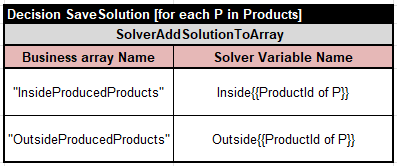
Here, the predefined column “SolverAddSolutionToArray” saves all found values of Solver variables Inside{{Product of P}} into the business array “InsideProducedProducts“
You may use the predefined column “SolverAssignSolution” to explicitly assign found values of Solver’s decision variables to business decision variables like in the sample decision model “Invest“:

Here is a more complex example from the sample “Oven“:
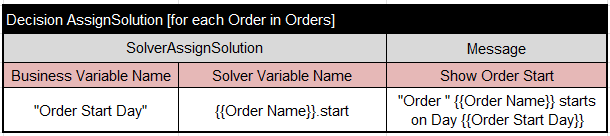
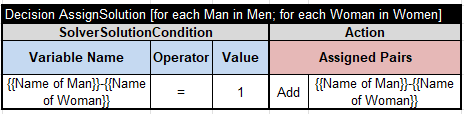
You may use a special condition “SolverSolutionCondition” to analyze the found solution and assign problem-specific results like in this table from the sample “StableMarriage“
Analyze the provided example in the folder “openrules.solver” to see more complex use of problem definitions and problem resolutions.